
This page contains answers to frequently asked questions about phones that run on the Symbian Series 60 platform.
Series 60 handsets include the Nokia 6630, Nokia 6680, Nokia N70, Nokia N73, Nokia N76, Nokia N80, Nokia N95, Nokia 3250, Nokia 7650, Nokia 3650, Nokia 6600, Siemens SX1, Nokia 3250, Nokia 3230, Nokia 6220, Nokia 6260, Nokia 7610, Nokia E61, Nokia E65, Panasonic x700, Sendo X and the Nokia N-gage
| Email from your Series 60 phone |
If you’re looking to use your Series 60 phone for sending and receiving e-mail, consider taking out an account with free provider, BT Yahoo. For details of connectivity, see our Series 60 Getting Connected section. |
| How do I use WAP / What is ‘Services’? |
As well as a web browser, the Series 60 phone has a WAP browser, which can be accessed via the Services menu. For details of Wap on a Series 60 phone, and using WAP, see our Series 60 WAP page |
| How do I install software? |
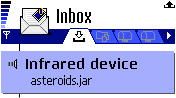
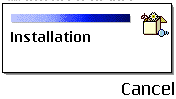
 Software Softwarefor Symbian OS phones is normally supplied using a Symbian installation file (with a .sis extension). This is a single file that contains the components needed to get a piece of software installed and ready to run. A SIS file can be run on a Symbian phone (e.g. from the Inbox or via a file manager. It can also be run via the PC connectivity solution that was supplied on the CD with the handset. Sometimes SIS files are distributed inside a ZIP file (for compression). See the ZIP section of this FAQ for details of how to extract a SIS file from a ZIP file Assuming
When you’ve copied the file |
| How do I uninstall software? | To uninstall software that was installed onto a Series 60 phone, go to the Manager application from the main menu (in the Tools folder on some models), select the application, press Options, and select Remove from the menu.
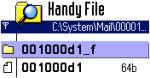
If for any reason, the uninstaller doesn’t work, you can use a File Manager (such as Handy File or ProfiExplorer ) to delete the program manually. Programs are stored in the \systems\apps folder. |
| How do I install Java games? |
Assuming you’re looking to download a Java game from a website via your PC – first, download the Java file onto your PC. Normally the file will Next, send
The application should |
| How do I install ringtones? |
To use a sound file as a ringtone, beam or email the file to your phone. It will then appear in the Messaging Inbox. Open the message and select ‘Options | Save’. Then, from ‘Profiles’, select a profile and set the ‘Ringing tone’ to the new file. For more on ringtones, see the mobile phone FAQ |
| Problem beaming ringtones | If you’re trying to beam a mid ringtone by Bluetooth, Infrared or MMS, you may see a message “format not supported”. It’s unclear whether this is by design (for copyright / payment reasons), or a bug in Series 60. Provided that you aren’t violating copyright, one option is to zip the mid file using an app such as ZipMan and send the file via a ZIP file. It will need to be unzipped on the target machine. |
| ZIP files | If you’ve downloaded an application and find you can’t install it – make sure the file you’re trying to install is a SIS (Symbian Installation) file. Many files are distributed in a compressed form (using the ZIP file format). If the file has a .ZIP extension, you’ll need to unzip it first. You can do this with a PC application such as WinZip, or on the phone itself using the ZipMan application. |
| Twitter, Facebook, MySpace or Flickr? | Looking to use a social networking site such as Twitter, Facebook, MySpace or Flickr? It should be possible to access the major social networking sites from your Windows Mobile device.
If you’re looking for information on social networking on your mobile, or for some screenshots of these applications, check out our Mobile Social Networking page. |
| Operating system |
Series 60 phones use the Symbian Operating System. To check the version number of the operating system on your phone, type *#0000# as if it were a phone number. If you have a Nokia Series 60 handset, you can get it upgraded to the latest version of the operating system at approved Nokia Service Centres – If the phone is still under warranty, this will be done free-of-charge. The process takes up to an hour, but service centre policies vary depending on how busy they are, and whether they have the reprogramming equipment onsite. Note that all data is lost when you upgrade, so it’s vital to do your own backup first. Newer Nokia Series 60 phones can be upgraded via downloadable installers, so you can upgrade the phone yourself – check with Nokia’s site to see if your handset can be upgraded online. |
| How do I connect my Series 60 phone to my PC? |
To an extent, this depends on the phone you have, as they’re not always supplied with the same connectivity solution. The common options are detailed below, but these may not apply to your specific phone. For Nokia
Files beamed |
| Internet over Bluetooth? |
Want to access the net on your device using your PC’s connection over Bluetooth? It is possible, but pretty tricky. If you want to try, take a look at the complex instructions on Mika Raento’s website |
| My phone reports that it’s running low on memory |
If in the course of normal operation, you start seeing messages about low memory, you need to remove some files from the Internal drive to recover some space. Note that ‘memory’ and ‘storage’ are effectively the same on a Series 60 phone.
For more on memory, see |
| Not starting / Memory full | We sometimes hear from users of Series 60 handsets that they’re unable to start their phone, or that the phone freezes on startup. Sometimes this is associated with the phone’s memory being full. If you can’t start your phone, here are a couple of things to try:
As a very last resort, you can format the phone and start again If you still can’t get |
| Extra memory |
 Most Series 60 phones Most Series 60 phonessupport extra memory via memory cards – commonly miniSD, microSD or MMC cards. Here are a few online stores that offer good deals for memory cards:
For more details, see our Memory |
| How do I format my memory card? |
Go to Extras > Memory > Options > Format Mem Card |
| Hotmail and AOL access? |
Hotmail and AOL use proprietary email systems, as opposed to the more common POP email systems – this makes it tricky to access mail on a Series 60 device. For email on the move, consider using a standard POP3 provider such as BT Yahoo (see setup details) that offers free email accounts that can be configured on a Series 60 phone. If you
For |
| How do I enable Auto Keylock? |
On many mobile phones, there’s an automatic keypad lock that can be set to kick in after a certain period of time to prevent accidental keypresses while the phone’s in your pocket. Oddly, this handy feature isn’t supported on many of the Nokia Series 60 handsets.
However, third-party application Handy Keylock is available to fill this gap. The functionality is also included as part of Psiloc Extended Profiles application. |
| Travel news on the move |
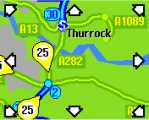 Traffic-i is a dedicated application that lets you receive live road traffic Traffic-i is a dedicated application that lets you receive live road trafficinformation from the Trafficmaster network direct on your phone over GPRS. Find out about road issues in your area, plus an indication of the speed of traffic on motorways and major A roads.For more on this application, how to set it up, and details of using this on the move, see our dedicated Traffic-i page For more information on mobile travel news, see our Travel page or our PDA-friendly Mobile Travel page. |
| Receive & Send faxes on your mobile |
If you need to receive faxes, but don’t have access to a fax machine, take a look at efax.com. They’ll give you a fax number, and forward faxes direct to your email account as an attachment. You can then use the messaging application to retrieve your faxes on the move. You can also use this service to send faxes, either by email-to-fax, or via their web interface. Also, consider Mobile Fax – this is a small application for |
| How do I get to the ringtones settings? |
Go to Profiles, select which profile you’re in (if you’re not sure, it’s probably ‘General’), press ‘Options’, ‘Personalise’, then press on the ‘Ringing tone’ option. Scroll up or down, and press ‘Select’ on the tone you want. |
| FM radio? |
Some mobiles come with a built-in FM radio. We’re often asked whether software is available to add a radio to a phone that doesn’t have a built-in FM radio. Unfortunately, it’s not that simple, as it’s not just a software issue. Phones that have built-in radios contain dedicated hardware in the phone to do this (an FM RF tuner)… and if your phone doesn’t have this software, then you’re out of luck. If you’re really desperate to listen to radio from your handset, note that it is possible to listen to streaming audio over the Internet via GPRS (using an application such as Avec Radio), although don’t expect the results to be up to much! |
| Can I use it as a modem? |
Yes. How this is done depends on which Series 60 phone you have. Depending on what your phone supports, you can use Infrared, Bluetooth or a cable connection.
Some Nokia Series 60 phones require you to have the Nokia PC modem driver installed. For phones such as the Nokia 6680, the driver installation is part of the Nokia Connectivity Suite installation. Check the PDF manual supplied with your phone for instructions on installing an using PC modem drivers. |
| How do share my pictures with others? |
Once you have taken a picture, there are three ways to get the files from your phone to other people or computers:
|
| Changing the default picture |
Here’s how to change the default wallpaper image used in the phone application:
On older versions of Series 60, you could also do this from Tools > Settings |
| Copying to / from SIM card |
Copy Contacts from SIM to phone
Copy Contacts from phone
|
| Copying / moving to memory cards |
Storing new messages on Memory card:
Copying/moving Contacts
The other tool you can use for copying other files to / from a memory card, you’ll need to use a File Manager – there are a few of these available for |
| Transferring text messages | Text messages sent and received on your Series 60 phone are stored in the /system/mail folder on your phone. These are stored in a Symbian-specific format, so can’t be transferred wholesale over to another phone, or transferred using a SIM card. If you wish to transfer text messages from your phone, you have a number of options:
For help on sending text messages from your PC via your Series 60 phone to the PC, see our Series 60 PC Connectivity SMS FAQ |
| What’s my phone’s serial number? | Enter ‘*#06#‘ as if it were a phone number, to get your handset’s serial number (known as the IMEI) – useful to keep a note of in case your phone is stolen. You may also need this number when registering certain types of software. |
| In the wrong language | Sometimes, after formatting the phone, or by accident, your phone may be in the wrong language. Here’s a quick guide on how to change to one of the phone’s other languages:
Start the phone. From the menu, go to the Tools folder, then go to Settings (a picture of a wrench). Select the first option, ‘Phone’ (a picture of a phone and a wrench). Select the first item on the first tab (‘General’). The first option in the list should be ‘Language’. Press the Enter key to open the dialogue, and pick your language. Note that if your language isn’t in the default list of languages, you will need to re-flash your phone with a firmware version that supports your language. A Nokia Service Centre in your area should be able to help |
| Beamed files & attachments | If you’ve beamed a file to your Series 60 phone, it will be received to the phone’s Inbox. If for any reason, you’re having a problem with a beamed file (or an email attachment in the Messaging application), here’s how to get access to that file to change, open, rename or delete it.
|
| Who’s calling? |
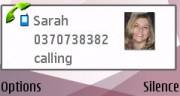 A Agreat feature of Series 60 phones is the ability to add a thumbnail to a contact. Take a picture of a friend with the camera, then open the person’s
|
| Can I read my work email? |
By default, Series 60 handsets support collection of email using the POP and IMAP protocols. Office systems such as Microsoft Exchange and Lotus Notes use a different set of protocols when communicating to desktop PCs for corporate email. Both Exchange and Notes support POP and IMAP email collection, but this is a service that many IT administrators restrict access to, for security reasons. If you are looking to collect your email from your phone, contact your company’s IT department to see if they support POP and IMAP. They should supply you with the settings you need. For help with setting up POP and IMAP email, see our Series 60 connectivity page |
| How do I format or hard reset a Series 60 phone? |
We accept no responsibility for use of this code. It is undocumented, not supported by Nokia or Symbian and should be used at your own risk. The soft-format
The method
Note |
| Alternative connectivity software |
Rather than the software that came as standard with the phone, there’s a rather useful third-party application called Oxygen II – This application supports Contacts, Calendar, Messaging and file management. For details of how this works, take a look at our Oxygen page |
| Call Divert Symbol |  If you’re seeing an odd icon featuring the number 1 or 2 over a line with an arrow – this represents call divert. If your SIM support two phone lines, this symbol is used to indicate that one of your lines is diverted. You should check your diversion settings from Tools > Settings > Call divert. Press ‘Options’ and select ‘Cancel all diverts’.Call diversion is a network setting, and can also be accessed via various short code keys. Entering *#21#[SEND] as a phone number should report your current diversion settings and either ##002#[SEND] or ##004#[SEND] should cancel all diverts on your account. (These may vary depending on your operator). If you find you can’t disable your call diversion, you should contact your network operator’s Customer Services team, who should be able to do this for you. If you’re seeing an odd icon featuring the number 1 or 2 over a line with an arrow – this represents call divert. If your SIM support two phone lines, this symbol is used to indicate that one of your lines is diverted. You should check your diversion settings from Tools > Settings > Call divert. Press ‘Options’ and select ‘Cancel all diverts’.Call diversion is a network setting, and can also be accessed via various short code keys. Entering *#21#[SEND] as a phone number should report your current diversion settings and either ##002#[SEND] or ##004#[SEND] should cancel all diverts on your account. (These may vary depending on your operator). If you find you can’t disable your call diversion, you should contact your network operator’s Customer Services team, who should be able to do this for you.
To change from Line 2 to Line 1, go to ‘Tools > Call Settings’ and change ‘Line in use’ to Line 1. Holding down the hash key can also accomplish this. If you still have problems, try your SIM in another handset, to check whether the problem is with your SIM and account (in which case, call your network operator), or the handset (in which case, consider a reset) |
| Data conversion |
For help with information on converting your Contacts, Calendar and documents for viewing on your phone, see our Conversion page for some general guidance. |
| Select Access Point? |
If this message keeps popping up for no reason, it sounds like your Series 60 phone is trying to connect to the ‘Net using GPRS and doesn’t know which access point to use. Reasons for this are likely to be:
May also be worth looking As a last resort – Another poster in this forum has fixed the |
| Recycle your mobile |  If you’ve got an old mobile phone handset that you’re no longer using… do your bit for the environment, and recycle it safely. You’ll also make some money when you send your old handset back. If you’ve got an old mobile phone handset that you’re no longer using… do your bit for the environment, and recycle it safely. You’ll also make some money when you send your old handset back.
Don’t leave it in the back of a drawer – see if it can find a new lease of life, and pocket you some cash. For a summary of the best deals on making cash from your old handset, try the comparison search tool at www.sellyouroldmobile.co.uk |
| Anti-virus | Viruses for Series 60 handsets are fairly rare, but they are around – mostly distributed via dodgy SIS files. Common Symbian viruses include Cabir, Skulls and Lasco. If you think you may have been affected, or are worried about security – try getting an anti-virus package for your Series 60 phone. Options include F-Secure, SimWorks and SMobile VirusGuard, and these are all available for download from www.handango.com. As a last resort, you can format your device back to factory settings to remove a virus. Note that a virus can also live on any memory card you have installed, so disinfect that with a virus checker too. |
| Can I play MP3 files on my phone? |
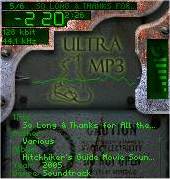 Some Series 60 phones support MP3 playback, and some don’t. If you try to play an MP3 file and get the message “Unknown File Format”, then your phone doesn’t support MP3 files. Some Series 60 phones support MP3 playback, and some don’t. If you try to play an MP3 file and get the message “Unknown File Format”, then your phone doesn’t support MP3 files.If this is the case, then there are a few applications out there that support playback of MP3 files for Series 60 phones – Most popular of these is the impressive UltraMP3!– this has no problem playing mp3 files, has a built-in playlist editor, and supports ‘skins’ to customise its player. Two quick FAQs on UltraMP3:
If Ultra doesn’t suit your needs, there are some others at handango.com |
| Other problems? | If your Series 60 phone is misbehaving, there’s nothing in our FAQ to help, and you’ve tried all of the obvious things to resolve your problem, here are a few other options to consider:
|
| The various Series 60 passcodes: |
Below is a list of the various code types you may find on Series 60 devices:Lock code
PIN code
PUK code
Wallet Code
Network locking code
Memory Card lock code
|


 Another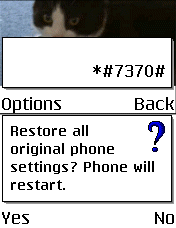
Got a question? Ask in our Series 60 forum
Useful links
- Nokia
Series 60 forum – Discussion of Series 60 handsets - Handango – 100’s of shareware titles for Symbian OS phones
- AllAboutSymbian – Great for general Series 60 information
- MySymbian – Site with details of the Nokia smartphone range
- O2
online – UK mobile phone network operator, offering free SMS text and Wap access. (Details) - Real
One Mobile – Real Audio and Video on a Symbian Smartphone.