Home
Sendo
software
WAP
setup
Email
setup
Series
60 FAQ
PC
connection
Mobile
phones
SMS
MMS
GPRS
Smartphones
Mobile
FAQ
Discuss
Sendo
|
Sendo
X Smartphone
This
page provides information on the Sendo X, and helps with getting connected
to the Internet for email and WAP
 |
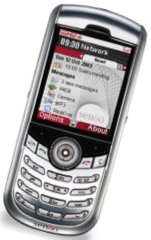
The Sendo
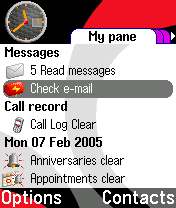
X, announced in late October 2003, is powered by Symbian OS v6.1
(Series 60), and is a combined mobile phone and PDA.
The Sendo X is a tri-band GPRS phone with
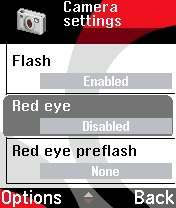
a colour screen, digital camera (with digital zoom and a built-in
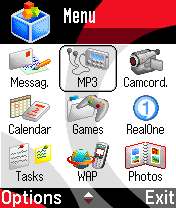
flash for nighttime use), camcorder, MP3 player, RealOne video
player and onboard document viewers.
Onboard memory: 32Meg (plus exandable via MMC
and SD cards)
Screen dimensions 176 x 220 pixel. Weight 120g.
UK Availability: Discontinued. Became available in Nov 2004.
Update: Sendo officially in receivership 29 June 2005. Motorola
has bought Sendo's Research labs
Discuss
the Sendo X in our Sendo
X forum
|
More details:
The Sendo X is a
stylish new handset from Sendo with a massive selection of features
available to the user. With a cool carbon fibre effect body, you dont
have to worry about not looking cool with an ugly handset.
The Sendo X comes
with Bluetooth built-in so you can talk wirelessly using a bluetooth
headset or you can send pictures to your mates through its bluetooth
also.
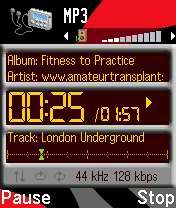
The Sendo X also
comes with a built-in MP3 and MPEG4 player so you can listen or watch
your favourite music video listen to your favourite album.
The Sendo is equipped
with a 640 x 480 VGA camera which is capable of taking photos and videos.
A flash is also included for those extra dark places or when your going
to take a picture in the dark.
Other features include: clock,
alarm, GPRS, SMS, MMS, Symbian OS, Polyphonic Ringtones, Vibrating Alert,
Games and Infrared
Other
links
- Sendo
X forum
- for discussion of this new handset, see our Sendo X forum
- Handango
- 100's of shareware titles for Symbian OS phones
- AllAboutSymbian
- Useful resource for details of the Symbian
Operating system.
- O2
online - UK mobile phone network operator, offering free SMS text and Wap access
FAQs
| Email
from your Sendo X |
If you're
looking to use your Sendo X phone for sending and receiving e-mail,
consider taking out an account with free provider, BT Yahoo.
For details of connectivity, click
here. |
| Where
can I find Series 60 software? |
If you're looking to enhance your Symbian phone by adding new software, take a look at Handango for a great collection of add-on software, utilities, applications and games for this phone.
For ringtones, wallpapers and Java games, try Jamster |
| How
do I install software? |
Software
for Symbian OS phones is normally supplied using a Symbian installation
file (with a .sis extension). This is a single file that contains
the components needed to get a piece of software installed and
ready to run. A SIS file can be run on a Symbian phone (e.g. from
the Inbox or via a file
manager. It can also be run via the PC connectivity solution
that was supplied on the CD with the handset.
Sometimes
SIS files are distributed inside a ZIP file (for compression).
See the ZIP section of our Series 60 FAQ
for details of how to extract a SIS file from a ZIP file
Assuming
you have a SIS file on your PC/Mac (either downloaded from the
Internet or on a CD), the ways to install a SIS file onto your
handset are as follows:
- Beaming
- Beam the file to your handset from your PC using Bluetooth
or IR. If
you don't currently have the ability to beam files to the handset
via Bluetooth or infrared
(either from another handheld device or from a PC), then you
may wish to purchase an IRDA adapter for your PC (this means
you'll be able to install software, backup and synchronise data
between phone and PC) - See our Series
60 PC connectivity page for more.
- Install
via PC - Assuming you've installed the PC connectivity suite
that was supplied with your phone, look for the "Install
software" option. You'll need to have the handset connected
to the PC via serial, Bluetooth or infrared for this to work.
- See our Series 60 PC connectivity
page for more.
- By
email - The alternative, is to email the file that you're
trying to install, typically a SIS (Symbian installation file)
to your own email account, and then use your phone to logon
to your email (details) and
download the SIS file as an attachment into your phone's Messaging
Inbox.
- Via
memory card - The Sendo X supports MMC and SD memory
cards and you can use these to transfer SIS files to the
handset via the card slot and a PC MMC Memory
card reader. Copy files onto an MMC / SD from your PC, and
then insert the MMC card into your handset. You'll need to have
a file manager on your phone to access the file from the memory
card (file managers are available from Handango
).
- USB
cable - refer to your phone's manual.
|
| How
do I install Java games? |
Assuming
you're looking to download a Java game from a website via
your PC - first, download the Java file onto your PC.
Normally the file will
be in the form of a .jar file. Sometimes JAR files are distributed
inside a ZIP file (for compression). See the ZIP
section of our FAQ for details of how to extract a file from
a ZIP file.
Next, send
the Java file to your phone (see above)
- From the phone menu,
go Messaging and then to the Inbox
- Select the message
containing the JAR file, and press Options > Open
- You'll be prompted
to install - Select "Yes"
- You may get a warning
that the application is untrusted. Just continue
- For phones with a memory
card, you may be prompted to choose 'Phone memory' or 'Memory
card'
- Once installation is
complete, you'll see a brief confirmation note
The application should
now appear in the main application menu, so you can exit Messaging
and go and run it from the main menu. once you're happy that the
application is running as expected, feel free to delete the JAR
from the Inbox to save space. |
| How
do I install ringtones? |
To use
a sound file as a ringtone, beam or email the file to your phone.
It will then appear in the Messaging Inbox. Open the message and
select 'Options | Save'. Then, from 'Profiles', select a profile
and set the 'Ringing tone' to the new file.
For more on ringtones, see the mobile
phone FAQ |
| Compressed
ZIP files |
If you've downloaded an
application and find you can't install it - make sure the file you're
trying to install is a SIS (Symbian Installation) file. Many files
are distributed in a compressed form (using the ZIP file format).
If the file has a .ZIP extension, you'll need to unzip it first.
You can do this with a PC application such as WinZip, or on the phone itself using the ZipMan
application. |
| Operating
system |
The Sendo
X uses the Symbian Operating
System. To check the version number of the operating system on your
phone, type *#0000# as if it were a phone number. |
| How
do I connect my Sendo X to a PC? |
Below is a quick summary
of the options open to you:
-
IR connection.
To use infrared, select 'Connect | Infrared' to turn the phone's
IR on. Line up the phone's IR port (on the left side) with the
PC infrared port, and Windows should detect the phone. Then,
use the built-in PC software to select the file you want to
send to the phone, or the Send facility on the phone to send
a file to the PC. For
more on IR, see our PC
connectivity page
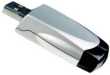
There are several IR adapters available, including the pictured
'USB-IRDA Adaptor' from Maplin
Electronics (Cat no: RV88V).
-
Bluetooth
connection. From the phone, select 'Connect | Bluetooth'.
Turn Bluetooth 'On', then move to the second tab by moving the
joystick to the right. This should show you all Bluetooth devices
in range. If your PC isn't shown, select 'Options | New paired
device' and let the phone search for the PC connection. When
the phone and PC are paired, use the software supplied with
the Sendo X to select the file you want to send to the phone.
There are several Bluetooth adapters available - We recommend
the Belkin USB Bluetooth adapter
available for around
£15
from amazon.co.uk.
For details
of Bluetooth, see our Bluetooth
page, and for help connecting, see our PC
connectivity page
Memory card reader.
If you don't want to beam files from your PC to the phone, another
option is to make use of the MMC/SD card slot in the phone.
Get hold of a Memory card reader
for around £20 and copy files onto an MMC or SD card plugged
into your PC. Find out more on our Memory
card page.
- USB
cable - refer to your phone's manual.
Files beamed
to a Sendo X can be found in the Messaging application, in the
Inbox folder |
| Sendo X manual |
The Sendo X manual is no longer available from the Sendo site - We've found a copy in PDF format online here |
| Internet
over Bluetooth? |
Want to access the net
on your device using your PC's connection over Bluetooth? It is
possible, but pretty tricky. If you want to try, take a look at
the complex instructions on Mika
Raento's website |
| My
phone reports that it's running low on memory |
If in
the course of normal operation, you start seeing messages about
low memory, you need to remove some files from the Internal drive
to recover some space. Note that 'memory' and 'storage' are effectively
the same on a Series 60 phone.
- If you're not sure
what's on your phone, go to Tools > File Manager > Options
> Memory details to see what's using your memory
- If it's your MMC card
that's filling up, go to Extras > Memory > Options >
Memory details
- To free space, use
the File Manager app to either delete files, or to move them
to the MMC card
For more on memory, see
the questions below... |
| Extra
memory |
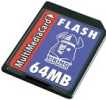
The Sendo X supports
MMC and SD cards for memory expansion. It's often cheaper to buy
online... Here are a few online options we've found:
- Amazon
- Always a good choice for reliable delivery at good prices
- Jessops
- Stockists of low-priced memory cards and accessories. Worth a
look as their own brand of cards, for photographic use, can
be cheaper than those on PDA sites TIP
- eBay.co.uk
- bid for
new cards at low prices!
For more details, see our Memory
Card page
|
| How
do I format my memory card? |
Go to Extras
> Memory > Options > Format Mem Card |
| Hotmail
and AOL access? |
Hotmail and AOL use proprietary email systems,
as opposed to the more common POP email systems - this makes it tricky to access mail on a Series 60 device. For email on the move,
consider using a standard POP3 provider such as BT Yahoo (see setup details) that offers free email accounts that can be configured on a Series 60 phone.
If you really want to use Hotmail or AOL, see our Series 60
FAQ on this subject.
|
| How
do I enable Auto Keylock? |
Surprisingly,
most Series 60 phones doesn't come with an automatic keylock that
switches on after a certain period of time to prevent accidental
keypresses - however, the Sendo X does - and we're very grateful.
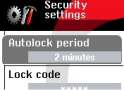
You'll find the settings to enable this under Tools > Settings
> Security. |
| Travel
news on the move |
Traffic-i
is a dedicated application that lets you receive live road traffic
information from the Trafficmaster network direct on your phone
over GPRS. Find out about road issues in
your area, plus an indication of the speed of traffic on motorways
and major A roads.
For more on this application, how to set it up, and details of using
this on the move, see our dedicated Traffic-i
page
For more information on mobile travel news, see our Travel page or our PDA-friendly Mobile Travel page. |
| Receive
faxes on your mobile |
If you
need to receive faxes, but don't have access to a fax machine, consider
Mobile Fax - this is a small application for Series 60 phones
that supports sending and receiving of faxes. For more details of
this clever package, see Mobile Fax
Alternatively check out how you can send and receive faxes by email, with efax.com. |
| How
do I get to the ringtones settings? |
Go to Profiles,
select which profile you're in (if you're not sure, it's probably
'General'), press 'Options', 'Personalise', then press on the 'Ringing
tone' option. Scroll up or down, and press 'Select' on the tone
you want. |
| FM
radio? |
Some mobiles
come with a built-in FM radio, but not the Sendo X. We're often
asked whether software is available to add a radio to a phone that
doesn't have a built-in FM radio. Unfortunately, it's not that simple,
as it's not just a software issue. Phones that have built-in radios
contain dedicated hardware in the phone to do this (an FM RF tuner)...
and if your phone doesn't have this software, then you're out of
luck. If you're really desperate to listen to radio from your handset,
note that it is possible to listen to streaming audio over the Internet via GPRS (using an application such as Avec Radio), although don't expect the results to be up to much!
Why not consider a small separate FM radio, such as the Mikomi portable radio from Argos , which is small enough to carry around, and capable
of good FM reception on the move. |
| Can
I use it as a modem? |
Yes, using
Infrared or Bluetooth.
Infrared
- Series 60 phones have a 'Modem' option under 'Connectivity'.
Selecting this option allows another device (such as a Pocket
PC or Laptop) to connect to the Internet using infrared. If
the equipment you wish to connect to doesn't have infrared,
consider a 'USB-IRDA Adaptor' from Maplin
Electronics (Cat no: RV88V).
- Bluetooth -
You can also use the handset as a modem from a Bluetooth PDA,
or a PC with Bluetooth connectivity (such as a
Belkin USB Bluetooth adapter). For more, see our Bluetooth
page.
|
| How
do share my pictures with others? |
Once you have taken a
picture, there are three ways to get the files from your phone
to other people or computers:
- You can copy it to
your PC with the software supplied on the CD . Depending on
what you have connected to your computer, you can use Infrared
or Bluetooth. Set your PC to receive files (using the IR or
Bluetooth software supplied with your adapter), select the photo
to send (from Images), then from the Options menu, select Send.
- You can use the Messaging
application and email the picture to yourself (or a friend)
- Send the picture to
another mobile using MMS. Costs of sending
pictures by MMS differ depending on which network operator you're
with. Take a look at our MMS page for
more.
|
| Changing
the default picture |
To change the default
wallpaper image used in the phone application, do the following:
- Press Menu
- Go to Tools | Settings
| Phone | Standby mode
- Press the joystick
on the "Background image" option.
- From the "Yes
/ No" option, select "Yes". You're now able to
select from an image in your images folder
|
| Copy
entries from SIM to phone |
If you're looking
to transfer all of your names and phone numbers from your SIM card
into the phone memory, here's what you need to do:
Contacts > Options
> SIM Directory > Options > Mark > Mark all > Options
> Copy to Contacts |
|
What's
my phone's serial number? |
Enter
'*#06#' as if it were a phone number, to get your handset's serial
number (known as the IMEI) - useful to keep a note of in case your phone
is stolen. You may also need this number when registering certain
types of software. |
| Who's
calling? |
A
great feature of Series 60 phones is the ability to add a thumbnail
to a contact.
Take a picture of a friend with the camera, then open the person's
contact, edit it, and add the image as a thumbnail. The photos are
in JPG format, so you can use images from digital cameras or scanned
images. Build up a mini-library of pictures, and get a name and
face to appear when a call comes in. Mobile phones identify callers
using a service called CLI. For more details, see our CLI
page
Another
common question we get asked, is from users asking if it's possible
to get to see a bigger photo of the caller while the phone's ringing.
There's nothing built-in to support this, but a third party application
is available to fill the gap - Full Screen Caller. A free trial
of this software is available from www.handango.com
If you're finding that only the person's number is being displayed
even though you have the name entered in Contacts, this is probably
because you have the number in the phone twice (perhaps once on
the phone memory and once on the SIM card - in this case, the phone
doesn't know which entry to use, so defaults to neither - Check
Contacts > Options > SIM Directory. |
| Can
I read my work email? |
By default, Series 60 handsets
support collection of email using the POP and IMAP protocols. Office
systems such as Microsoft Exchange and Lotus Notes use a different
set of protocols when communicating to desktop PCs for corporate
email. Both Exchange and Notes support POP and IMAP email collection,
but this is a service that many IT administrators restrict access
to, for security reasons. If you are looking to collect your email
from your phone, contact your company's IT department to see if
they support POP and IMAP. They should supply you with the settings
you need.
For help with setting up POP and IMAP email, see our Series
60 connectivity page |
| How
do I format a Sendo X? |
We
accept no responsibility for use of this procedure. It should
be used at your own risk.
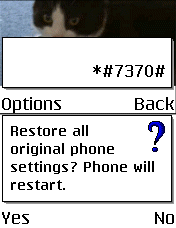
The soft-format
code for Series 60 phones is *#7370#
. You enter this code as you would enter a phone number in the
Phone application. It performs a format of the Internal drive
- All data will be lost if you use this feature.

The method
of performing a hard-format, i.e resetting it completely to factory
defaults and removing all data, is as follows:
- Switch
off the phone.
- Hold
down the '5' key, and with this held in, turn the phone on with
the power button
- Wait
until a green tick appears over the right softkey, then release
the '5'
- Follow
the prompt to reset the phone
Note
that you shouldn't switch the phone off or remove the battery
when performing either of these operations, and it's advised that
the handset has a reasonable amount of battery charge before performing
a format/reset. |
| Alternative
connectivity software |
Rather than the software
that came as standard with the phone, there's a rather useful
third-party application called Oxygen II - This application supports Contacts, Calendar,
Messaging and file management.
For details of how this works, take a look at our Oxygen
page |
| Data
conversion |
For help with information
on converting your Contacts, Calendar and documents for viewing
on your phone, see our Conversion page
for some general guidance. |
| Select
Access Point? |
If this message keeps
popping up for no reason, it sounds like your Series 60 phone
is trying to connect to the 'Net using GPRS and doesn't know which
access point to use. Reasons for this are likely to be:
- You've installed a
piece of software that needs to connect to the 'Net (such as
Activemail)
- You have an email
or MMS in your Outbox that's trying to send
- You have GPRS set
to "When available" (See Tools > Settings >
Connection > GPRS)
May also be worth looking
at the settings of your access points (Tools > Settings >
Connection > Access Points).
As a last resort - Another poster in this forum has fixed the
problem by backing up their contacts and other vital info, then
performing a hard-reset - losing all data. |
| The
various Series 60 passcodes: |
Below is
a list of the various code types you may find on Series 60 devices:
Lock code
- Length: 5 digits
- Detail:Used to prevent unauthorised access to certain functions on the phone
- Set from: Tools > Settings > Security > Phone & SIM
PIN code
- Length: 4 digits
- Detail: This is an optional 4 digit code to protect
your SIM
- Set from: Tools > Settings > Security > Phone & SIM
- Lost? - If you keep trying, you'll eventually get locked
out and need to contact your network operator for a PUK code
(see below)
PUK code
- Length: 8 digits
- Detail: You'll be asked for this 8 digit code if you've
entered the wrong SIM code more than the allowed number of times.
You'll need to contact your network operator to get this lock
lifted.
Network locking code
- If your phone was fixed to work on a specific network (for
example, Orange), this lock may prevent you from using another
SIM in the handset. You may see "SIM card rejected" or "SIM
card unaccepted". This lock can be lifted for you by contacting the network operator in
question (there may be a fee for this).
|
Is this page correct? Something wrong or missing on this page? Report a site problem
Please help us correct the problem and to keep the site up-to-date.
If you're looking for help, please don't use this option - instead use our forum |
Copyright © 2003-2008 Filesaveas. Terms |