
This page contains information on the Nokia N73 handset, including answers to common questions.
|
Features:
Availability: Now – Free on all tariffs at O2’s online store. Also, free on Vodafone and o2 at Carphone .
Discuss |
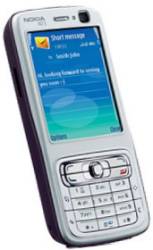
Nokia N73 Review
The Nokia N73 is a nifty little handset – pretty slim, and packed with some great applications. It’s powered by the Symbian operating system, so the applications are well established, and there’s a lot of third-party software and games available for this phone.
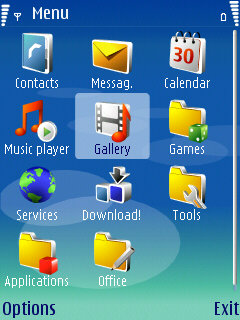 N73 Main Menu |
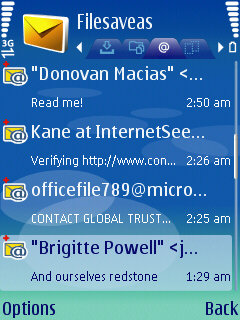 Email on the N73 |
Software supplied on the Nokia N73 is pretty extensive. The standard applications Calendar, Contacts, Email and web are there, and you can also find apps including Gallery, Music Player, Visual Radio, Lifeblog, RealPlayer, Quickoffice and an Adobe PDF file reader.
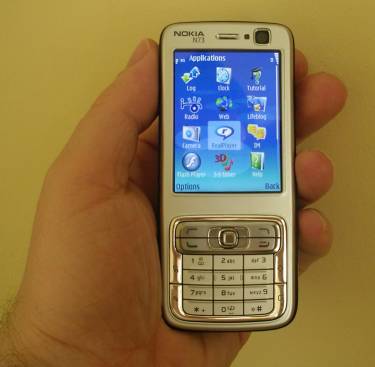
The Nokia N73 is a comfy fit in the hand, has a pretty usable digital camera (3.2 megapixel with a Carl Zeiss lens and a flash). Loads of features, but not as over-complicated as many high-end phones on the market. At the time of writing, this handset is available free on most of the UK networks, and it’s a handset we’re happy to recommend.
Nokia N73 FAQ
Answers to common questions on the N73
| Accessories? |
There’s . |
| Email from your N73 |
If you’re looking to use your N73 for sending and receiving e-mail, see our Series 60 Connect page. |
| How do I install software? |
If you’ve downloaded an For help with installing |
| How do I uninstall software? |
To uninstall software that was installed onto a Series 60 phone, go to Tools > App. Mgr from the main menu, select the application, press Options, and select Remove from the menu |
| Operating system |
The Nokia N73 uses the Symbian Operating System. To check the version number of the operating system on your phone, type *#0000# as if it were a phone number . The device can be upgraded to the latest version of the operating system at approved Nokia Service Centres – If the phone is still under warranty, this will be done free-of-charge. The process takes up to an hour, but service centre policies vary depending on how busy they are, and whether they have the reprogramming equipment onsite. Note that all data is lost when you upgrade, so it’s vital to do your own backup first. |
| How do I connect my N73 to my PC? |
The N73
Files beamed |
| Internet over Bluetooth? |
Want to access the net on your device using your PC’s connection over Bluetooth? It is possible, but pretty tricky. If you want to try, take a look at the complex instructions on Mika Raento’s website |
| My phone reports that it’s running low on memory |
If, in
For more on memory, see |
| More power | Our top accessory for the Nokia N73 is the PowerChimp, a portable, rechargeable power supply with bunch of connectors, including the required mini-Nokia. As reviewed in Show 32 of our UK Tech podcast. More details, see our PowerChimp review. |
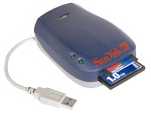
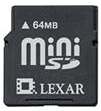
| Extra memory for N73 |
For more details, see our Memory |
| Back up your contacts |
Scared by the thought of losing your mobile and all of your important phone numbers? the answer is at hand with Mobyko. This is a free service that lets you keep a copy of your contacts information securely online. It’s a free service, and works well on Nokia Series 60 phones. |
| How do I format my memory card? |
Go to Tools > Memory > Options > Format Mem Card |
| Hotmail and AOL access? |
Hotmail and AOL use proprietary email systems, If you really want to use Hotmail or AOL, see our Series 60 |
| Can I use the N73 in the States? |
Yes. The N73 is a quad-band phone operating on EGSM900/1800 (Europe, Africa, Asia Pacific), and GSM1900 (USA, Canada, South America). There should be no problem using the N73 with network operators in these countries. Roaming restrictions from your network operator may prevent use of some services in other countries. |
| How do I enable Auto Keylock? |
If you’re looking for an automatic key lock that switches on after a certain period of time to prevent accidental keypresses, try Handy Keylock. The functionality is also included as part of Psiloc Extended Profiles application. |
| Receive faxes on your mobile |
Looking to get faxes on your Series 60 phone? See our answer in the Series 60 FAQ |
| How do I get to the ringtones settings? |
Go to Tools > Profiles, select which profile you’re in (if you’re not sure, it’s probably ‘General’), press ‘Options’, ‘Personalise’, then press on the ‘Ringing tone’ option. Scroll up or down, and press ‘Select’ on the tone you want. |
| Can I use it as a modem? |
Yes, using Infrared or Bluetooth.
|
| How do share my pictures with others? |
Once you have taken a
|
| Changing the default picture |
To change the default
|
|
What’s my N73’s serial number? |
Enter ‘*#06#‘ as if it were a phone number, to get your handset’s serial number (known as the IMEI) – useful to keep a note of in case your phone is stolen. You may also need this number when registering certain types of software. |
| Who’s calling? |
Thanks to caller display, we can see who’s calling. For answers to your Caller Display questions, see our Caller Display Series 60 FAQ |
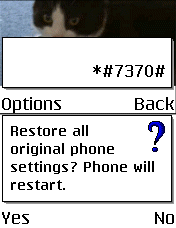
| How do I format or hard reset a N73? |
We The soft-format
The method
Note |
| Alternative connectivity software |
Rather than the software |
| Copy to memory card | For details of how to copy files to/from an installed memory card, see the answer in our Series 60 FAQ. |
| Data conversion |
For help with information on converting your Contacts, Calendar and documents for viewing on your phone, see our Conversion page for some general guidance. |
| Anti-virus | Viruses for Series 60 handsets are fairly rare, but they are around – mostly distributed via dodgy SIS files. Common Symbian viruses include Cabir, Skulls and Lasco. If you think you may have been affected, or are worried about security – try getting an anti-virus package for your Series 60 phone. Options include F-Secure, SimWorks and SMobile VirusGuard, and these are all available for download from www.handango.com. |
| SMS to PC? |
If you’re looking to copy your SMS text messages to a PC, you’ll find that the Nokia PC Suite software doesn’t support this. The best option is to try Oxygen II– This is an alternative PC Suite and supports copying of SMS, MMS and other message types, as well as a few other things that Nokia suite can’t do. Take a look at our Oxygen page |
| Various N73 passcodes: |
Below is a list of the various code types you’ll find on the N73: Lock code
PIN code
PUK code
Network locking code
Memory
|
 Software
 Via
Via


|

Other links
- Nokia
Series 60 forum – Discussion of the N73 and other similar Nokia smartphones - Handango – 100’s of shareware titles for Symbian OS phones
- O2
online – UK mobile phone network operator, offering free SMS text and Wap access. (Details) - Email
from your N73 – Step-by-step setup of email on your N73
Want Nokia N73 software? Please visit Handango.