
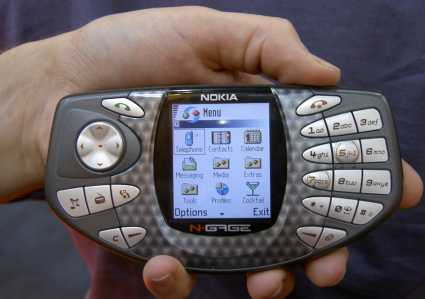
Back in 2003, Nokia and Sega have combined forces to bring out the Nokia N-Gage mobile game deck. The N-Gage phone was a combined games console / mobile phone, powered by the Symbian OS (Series 60). It was followed by the N-Gage QD.
In 2007, Nokia decided to extend the N-Game as a gaming platform, and now, N-Gage games can be played on various Nokia Series 60 devices, such as the Nokia N81
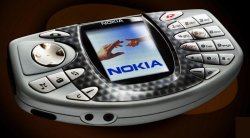 |
The Features: 3D Gaming (on memory card or downloaded over-the-air), Screen: High-contrast, backlit colour display (176 x 208 pixels)
|
 |
The Features as per the original N-Gage, with the following key differences: No longer available.
|


N-Gage Games – Order online from Game
N-gage sites
- Nokia’s
N-Gage site – The official site - Ngage
World – Great place for news, specs, questions and chat
N-gage software
- Game – Online and high-street retailer for N-Gage games
- Handango– 100’s of shareware
titles for the Nokia N-Gage and other Symbian handsets Good! - AllAboutSymbian – Site with links to shareware
- MySymbian – Great resource for smartphone users
N-gage software?Please visit Handango
N-gage chat
- N-Gage
Forum – Discuss the N-gage in our forum - Comments – Our old comments page
N-gage advice
- N-Gage
Forum – Discuss the N-gage in our new forum - Ngage
WAP setup – Help getting WAP up-and-running - Email
from your Ngage – Step-by-step setup of email on your N-gage
Other links
- O2
online – UK mobile phone network operator, offering free SMS text and Wap access.
(Details) - Nintendo DS info – Details of the handheld consoles great for
mobile gamers.
|

Answers to some
frequently-asked questions on the N-Gage and N-Gage QD:
| Operating system |
The Nokia N-Gage uses the Symbian Operating System. To check the version number, type *#0000# The N-Gage can be upgraded to the latest version of the operating |
| Accessories? | There’s a wide range of accessories, including spare batteries, cases, chargers, in-car kits, hands-free units, data cables and fascias, available at Carphone Warehouse and MobileShop. . |
| What games are available for the N-Gage? |
The following games were announced at launch:
|
| Can I access Hotmail & AOL? |
For
|
| Can I use it as a modem? |
Yes. The N-Gage can be used as a ‘modem’ to connect over Bluetooth (Not infrared). You’ll need to install the "Nokia Modem options" software which is on the CD supplied with the N-Gage Once installed, you’ll need to enable Bluetooth (from ‘Tools’ | Bluetooth), and pair the N-Gage to the machine you want to connect with. For more on Bluetooth, see our Bluetooth page. |
| How do I hard reset the N-Gage? |
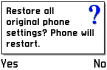 The Thereset code is *#7370# . All data will be lost if you use this feature. Information obtained via Italian Nokia newsgroup – Click here for the original article, obtained via Google. We accept no responsibility for use of this code. It is undocumented, not supported by Nokia and should be used at your own risk. |
| Email from your N-Gage |
We’ve set up a page offering help on getting signed up for email access from your N-Gage. See our N-Gage connectivity page. |
| How do I use WAP / What is ‘Services’? |
The N-Gage doesn’t have a built-in web browser, but does have a WAP browser, which can be accessed via the Services menu. For details of setting up the Wap browser, see our Series 60 WAP page |
| Infrared on the N-Gage |
Surprisingly, the N-Gage doesn’t support connection to other devices or PCs using infrared (IR is standard with most new mobile phones, and with other Series 60 devices). Instead, the N-Gage uses Bluetooth for connection to other devices. For information on using Bluetooth, see our Series 60 Bluetooth information |
| Email problems |
If attempting to retrieve email gives you a "General: System error", make sure you have "Gateway IP address" set to 0.0.0.0. (Tools | Settings | Connection | Access points) This message also appears if you are trying to connect to an email account over a WAP connection (e.g. trying to connect to BT Yahoo‘s mailbox while dialed up over o2‘s WAP service). Also, see our N-Gage connectivity page |
| How do I install software? |
Software
|
| How do I connect my N-Gage to my PC? |
The N-Gage
If you’re |
| Can I browse the web from my N-Gage? |
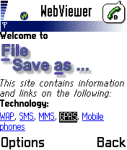 The TheN-Gage comes with a Wap browser that is capable of viewing web content designed for use over the Mobile Internet. If you’re looking for HTML web access, take a look at Doris Browser. This is a small Java application that can be evaluated for free for ten days. Once installed, you can find it from the Tools | Apps icon. The browser supports image rendering, access to secure sites as well as viewing Word and PDF documents – and As an alternative, the fully-featured Opera |
| How do I turn reports off? |
Messaging | Options | Settings | Short message | Receive report: Yes / No |
| How do I delete message reports? |
It’s possible to set up Messaging to send you a ‘delivered receipt’ when a text message gets delivered ("Settings | Short message Receive report". Receipts are stored in the Log application. It’s not possible to remove individual items from the Log application, the entries will disappear when they are older than the "Log duration" setting. ("Log | Options | Settings"). There is a ‘Clear log’ option in the "Log | Options" menu, which will remove all log entries, including the call costs and durations. |
| Extra memory for N-Gage |
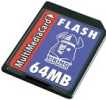 The N-Gage supports The N-Gage supportsMMC cards for memory expansion. Nokia can sell you their own MMC cards, but their prices for Nokia-branded cards are higher than for standard cards. We’ve not heard of any incompatibility with non-Nokia cards, so it’s worth shopping around to get a third-party card. Here are a few online options:
Note that For more |
| Can I use the N-Gage in the States? |
Yes. The N-Gage is a tri-band phone operating on EGSM900/1800 (Europe, Africa, Asia Pacific), and GSM1900 (USA, Canada, South America). There should be no problem using the N-Gage with network operators in these countries. Roaming restrictions from your network operator may prevent use of some services in other countries. |
| Can I play MP3 files on my phone? |
We’re quite keen on the application UltraMP3!, which has a built-in playlist editor. If Ultra doesn’t suit your needs, there are some others at handango.com |
| How do I install ringtones? |
N-Gage supports playback of .mid or .wav files, and use of these file formats as ringtones. To use such a sound file, beam or email the file to your handset. It will then appear in the Messaging Inbox. Open the message and select ‘Options | Save’. Then, from ‘Profiles’, select a profile and set the ‘Ringing tone’ to the new file. For more on ringtones, see the mobile phone FAQ |
| How do I get to the ringtones settings? |
Go to ”Profiles, select which profile you’re in (if you’re not sure, it’s probably ‘General’), press ‘Options’, ‘Personalise’, then press on the ‘Ringing tone’ option. Scroll up or down, and press ‘Select’ on the tone you want. |
| How do share files with others? |
If you want to share a
|
| Receive faxes on your mobile |
Looking to get faxes on your Series 60 phone? See our answer in the Series 60 FAQ |
| Device startup failed. Please contact retailer |
If you see this error, it normally means what it says – taking the N-Gage to the nearest Nokia Service Centre seems to be the likely fix, although some suggestions have been to remove the MMC card and restart the device, or to try several restarts one after the other. |
| Changing the default picture |
To change the default
|
|
What’s
my serial number? |
Enter ‘*#06#’ for your handset’s serial number (known as the IMEI) – useful if your phone is stolen |
| Default lock code |
The default lock code is 12345 In the event that you’ve forgotten your lock code, take your phone to a Nokia Service Centre… they can unlock it for you. |
 The
The
 Memory card reader.