
This page provides information on connecting a Series 60 phone to a PC.
Series 60 handsets include the Nokia N73 , Nokia N95, Nokia E61, Nokia 6630, Nokia 6680, Nokia N70, Nokia 3250, Nokia 7650, Nokia
3650, Nokia 6600 , Siemens
SX1, Nokia 3250, Nokia 3230, Nokia 6260,Nokia 7610, Panasonic x700, Sendo X and the Nokia N-gage
Connectivity FAQs
| How do I connect my Series 60 phone to my PC? |
Series 60
|
| How do I install software without IR or Bluetooth? |
|
| How do I install ringtones? |
7650 and 3650 supports playback of .mid or .wav files, and use of these file formats as ringtones. To use such a sound file, beam or email the file to your handset. It will then appear in the Messaging Inbox. Open the message and select ‘Options | Save’. Then, from ‘Profiles’, select a profile and set the ‘Ringing tone’ to the new file. For more on ringtones, see the mobile phone FAQ |
| How do share my pictures with others? |
Once you have taken a
|
| Data cables |
Many visitors to this site report that they’ve heard of data cables for serial or USB connection between a PC and Nokia handsets (such as the 6600, 3650 and 7650). Be warned that these cables are for use with special software for configuring Nokia handsets using F-BUS or M2BUS. These can be used for phone unlocking, firmware updates and for advanced programming use. These cables can be found cheaply on eBay These are not intended for use by consumers. They are not for use with the Nokia’s PC Suite, and if you try to connect using one, you’ll find that the Nokia PC Suite won’t find the phone. If you’re looking to connect to your PC for picture/file transfer, backup and software installation, look for a Bluetooth or IR adapter, as per the section above. One notable exception, is the Nokia 7610, |
| Alternative connectivity software |
Rather than the software |
| Managing files from your PC |
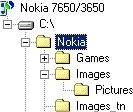 As Aswell as Oxygen II (mentioned above), there is another useful PC-to-phone application available for the Series 60 – Epocware’s PC File Manager. This allows you to access the files on your phone from the PC – great if you want to copy files to a specific location, rather than simply beaming them to your Inbox. You can also use this application to backup your files, cut, copy and paste files, and browse around the folders on your phone. |
| Problems connecting to a phone? |
We offer some specific guidance below on Bluetooth and IR problems, but here are some general suggestions: Try to work out which end is failing – PC or phone:
Still having problems? see the advice below, or consider an alternative way of connecting. Also, try our Series |
| Text messages from a PC |
You can use your PC to send and receive text messages via a Series 60 phone. Here are some options:
For help on transferring existing text messages from your Series 60 phone to the PC, see our Series 60 Text FAQ |
| Sending other file types to a PC |
As above, Series 60 handsets |
 Software
Using
Infrared
Here
is a step-by-step guide for copying a file by infrared:
This
assumes you have a Windows PC with infrared hardware, such as a USB-IRDA Adaptor (from Maplin
Electronics Cat no: RV88V).
- From the handset,
select ‘Connect’ from the menu, and select ‘Infrared’. This turns the
phone’s IR on. -
 Line
Line
up the phone with the PC infrared port, and Windows should detect the
handset. You should see an infrared icon in the system tray. If the
PC doesn’t find the phone, you need to ensure that infrared is correctly
configured on the PC via your PC’s control panel (The ‘Wireless link’
icon).
Once
the PC and handset can see each other, you can either use Windows
infrared software to send and receive files, or use the Connectivity
Suite supplied with your handset to exchange files, configure or back
up your handset. We’ll assume you’re not using the PC Connectivity
Suite software, and just want to transfer a file.
Sending
to the PC
-
Find the file you want to transfer. If the file can’t be accessed
directly, you may need a file manager (file managers are available
from Handango). -
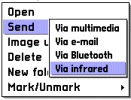
Select
the file (e.g. a photo from the Images application), and from
the ‘Options’ menu, select ‘Send’, and ‘Via infrared’
-
Windows should start to see the transfer attempt, and should prompt
you to receive the file. If you accept the file, the file will be
copied to the location specified in the Windows Wireless Link software
(or by right-clicking the System tray icon)
Sending
a file to the phone
-
With
infrared enabled, right-click the Infrared icon on the system tray
and select ‘Transfer files’ -
Select
the file you want to transfer from the file browser, and press ‘Send’
-
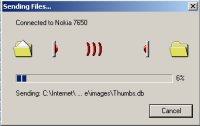
File
transfer should begin, and you should see a transfer dialog
-
Once
received, you can find the file in the Messaging application Inbox.
Select the file, and press ‘Options’ and ‘Open.
Setting
up the Nokia Connectivity Suite
-
 The
The
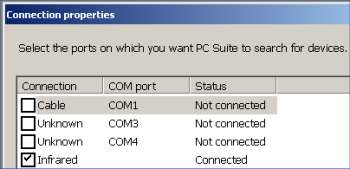
Nokia PC Suite needs to be set to talk to the phone on the right COM
port. To do this, right-click on the mRouter icon in the system tray
next to the clock. Select ‘Properties, and a dialog box will pop up.
Make sure that the Infrared box is ticked, and all the others are
unticked.
Problems connecting
|
Using
Bluetooth
 If
If
you want to connect your Series 60 handset to your PC via Bluetooth,
the phone has all the software you need built-in. Your PC will
require suitable Bluetooth hardware and software. If
your PC isn’t Bluetooth-enabled already, the best bet is to get
yourself a Bluetooth Adapter to plug into a spare USB port on
your PC. There are several Bluetooth adapters available – We recommend
the Belkin USB Bluetooth adapter available for around
£15 from amazon.co.uk. This comes with the required
Bluetooth software for your PC.
Here is
a step-by-step guide for copying a file via Bluetooth:
This assumes
you have a Windows PC with Bluetooth installed hardware, such as
a Belkin
USB Bluetooth adapter (see above).
Before
you can make use of a Bluetooth connection between PC and phone,
you need to ‘pair’ them, as follows:
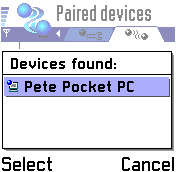
- From
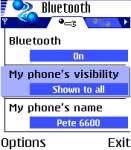
the phone handset, Go to ‘Connect’ and select ‘Bluetooth’ - From
the first tab, select ‘Bluetooth’, and by pressing in the joystick,
set Bluetooth to "on" - Move
to the second tab, press "Options" and select "New paired device" - Select
the device you want to pair with. You’ll be prompted to enter
a passcode. If the device you’re connecting to already has a
passcode, then you’ll be prompted to add this, otherwise you’ll
need to create a passcode. Use a number like 1234 (you only
need this once to get a pairing, so you don’t need to remember
it) - You will
be prompted to enter the passcode on the device you want to
pair to (unless it already has a passcode). Enter the code that
matches the one you entered on the phone, and "ok" it. - To allow
the phone to always connect without prompting and pairing, you
can set the device as "authorised". Do this by selecting the
device, and from the options menu, select "Set as authorised".
Once
the PC and handset are paired, you can either use the software supplied
with your Bluetooth PC hardware to send and receive files, or use
the Connectivity Suite supplied with your handset to exchange files,
configure or back up your handset. We’ll assume you’re not using the
PC Connectivity Suite software, and just want to transfer a file:
Sending
to the PC
-
Find the file you want to transfer. If the file can’t be accessed
directly, you may need a file manager (file managers are available
from Handango). -
Select
the file (e.g. a photo from the Images application), and from
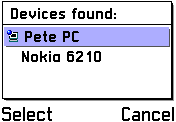
the ‘Options’ menu, select ‘Send’, and ‘Via Bluetooth’. The
handset will search for Bluetooth devices in range.
-
Select the target PC, and the file transfer should begin. If
you see "Sending failed", this is most commonly because
the PC end is not set up correctly. Each PC Bluetooth adapter
comes with different software and settings, so we can’t cover
every option here – but things to check are that your Bluetooth
software has "File Transfer" enabled, that Bluetooth
is on, and that there is a default folder defined that received
files are placed into.
Sending
a file to the phone
-
The
PC is in control of file sending, and as each piece of Bluetooth
hardware on a PC comes with different software, we can’t provide
different step-by-step instructions for all software here. Sending
a file is controlled from the PC, and you need to refer to the
software supplied with your Bluetooth dongle for how to do this.
You’ll need to select the file to send, and select from a list
of Bluetooth devices in range. As long as the handset’s Bluetooth
is set to "on" and the handset has been "paired"
(see above), then the file should be transferred. -
Once
received, you can find the file in the Messaging application Inbox.
Select the file, and press ‘Options’ and ‘Open.
Setting
up the Nokia Connectivity Suite (Bluetooth)
-
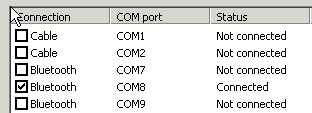
Connection is made using "Generic serial". Check your
PC Bluetooth software to see which COM port it assigns to "Generic
serial", and then from Nokia’s Connectivity Suite, make
sure that the appropriate COM port is ticked. You’ll then need
to go into your PC Bluetooth software, and establish Generic
Serial link. When the link is established, the Nokia Connectivity
Suite should change from "Disconnected" to "Connected"
Problems connecting over Bluetooth?Having
If |
 General:
Got a question
we’ve not answered? Please raise it in our Series
60 discussion forum and we’ll try to get you an answer.