
Windows Mobile Pocket PC devices come with all the software you need to connect to the Internet. Once connected, you can browse the web, check your email and more.
This page explains how to set up your Windows Mobile Pocket PC device for email and web surfing.
Windows Mobile is used on a wide range of mobile devices, including :
-
O2‘s, XDA II, XDA IIs, XDA mini, XDA Orbit, XDA Trion, XDA Atom and XDA Exec
- The HP iPAQ h6315
- i-mate Jam, K-Jam, JasJar and JAMin
- Qtek S100 , Qtek s200 , 9000, and 9090
- Orange SPV M1000, M2000 and M5000
-
T-Mobile MDA, MDA Compact and MDA Pro
This page focuses on one-box Windows Mobile devices – Combined PDA and phone.
- For help with two-box solutions, i.e. Pocket PC with a separate phone, see our Pocket PC connectivity page.
- For Windows Mobile Smartphone, see our Smartphone Connect page
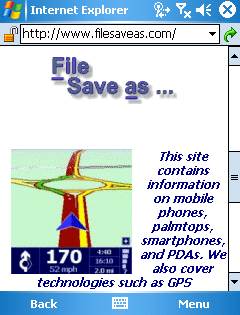 Windows Mobile Internet Explorer in action |
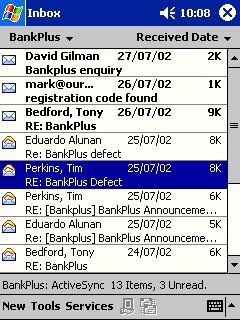 Pocket Inbox in action |
| Getting an Internet account |
If you’re looking to connect to the Internet from a Windows Mobile device that has a built-in phone, there are two methods you can use to connect over the mobile phone network: GPRS or dial-up:
- GPRS – GPRS offers faster connection speeds, and you’re not billed by the minute, but by the megabyte transferred. You need to set up your device using settings that are specific to your network operator. You’ll need the Internet GPRS APN, plus the username and password. See our GPRS page for the UK settings. Note that you need Internet APN settings, not WAP or MMS.
- Dial-up: With dial-up, you’re billed by the minute – If you don’t have an existing dialup account, then sign up for one from BT Yahoo free-of-charge and get a pay-as-you go account. There’s no subscription fee, and
you only pay standard call rates for the time you’re online. To get an account, first, go to BT
Yahoo from a PC, select "Pay as you Go" and create an account. You’ll then
get some details that you’ll need to set up your account on the device.
You also need a data-enabled SIM card – This is a setting that your network operator has to
enable for you.
To connect, you’ll need to have an account with an Internet provider.
You may wish to use your existing Internet account, or apply for a free
account that can be used with your device.
| Setting up the Internet connection |
Here’s we’re using a Windows Mobile 6 device. This may look slightly different if you’re on a Windows Mobile 5 device. To set up your connection:
- Go to Start > Settings,
go to the ‘Connections’ tab, and select ‘Connections’ - Under "My ISP", select "Add
a new modem connection" - At the next screen, enter a name for this connection – this is something for your reference, such as "o2 mobile GPRS". From the pulldown, choose how you will be connecting: either "Cellular line (GPRS)" or "
Cellular line", and press ‘Next’
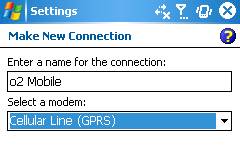
- Depending on the type of connection you selected.
– If you chose ‘GPRS’, then you need to enter the GPRS Access Point Name (for o2 customers, this is mobile.o2.co.uk).
– If you chose the dial-up option, then you’ll need the dial-up phone number (in our example of BT Yahoo, the number is 08457 560000).
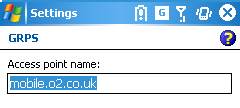
When entered, select ‘Next’ - Enter your username and password, as explained at the start of this section, then press
‘Finish’
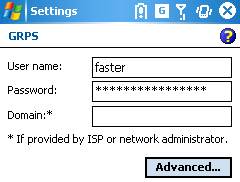
- Close the ‘Connections’ dialog
with the ‘OK’ button
You should now be ready to connect to the Internet.
Make sure the phone is enabled and that you’re getting a signal. Then, go to Pocket Internet Explorer and in the address bar, type "https://www.filesaveas.com/" then press Return
You should now be connecting to the Internet, and hopefully see our
homepage in your Internet Explorer browser.
See below
for help setting up email
| Set up your email settings |
Here, we’re going to set up a standard POP3 email account. If you don’t have one, then sign up for one from BT Yahoo free-of-charge and get a pay-as-you go account. There’s no subscription fee, and
you only pay standard call rates for the time you’re online. To get an account, first, go to BT
Yahoo from a PC, select "Pay as you Go" and create an account. You’ll then
get some details that you’ll need to set up your email account on the device.
Here’s we’re using a Windows Mobile 6 device. This may look slightly different if you’re on a Windows Mobile 5 device. To set up your email service:
- Go to Messaging, and tap on "New E-Mail account" (on older versions, this is via Menu > Tools > ‘New
Account…’ -
Enter your email address, untick "try to get settings automatically", and press ‘Next’ - Enter your
name and a name for the email account (e.g. "Home", "BT Yahoo", etc). Press "Next" - Enter the
‘Incoming mail server’ address (POP3 or IMAP). For BT Yahoo, this is mail.btinternet.com. Select the ‘Account type’ (or ‘Service type’). Most common
type is POP3. Press ‘Next’ - Enter the email account username and email account password. Tick ‘Save password’ if you don’t want to enter your
password each time you check your email. Press ‘Next’ - Enter the
‘Outgoing mail’ server address (SMTP).
– If you’re connecting via BT Yahoo dial-up, then this will be ‘mail.btinternet.com’.
– If you’re connecting by GPRS, then this will be the SMTP server address of your network operator (see above). For o2, this is ‘smtp.o2.co.uk’
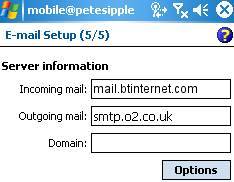
- Press ‘Next’. You may be given the option to check for email automatically. When complete, press ‘Finish’
This
should be enough information to allow you to connect and collect your
email. When you press the send/receive button, your Windows Mobile will attempt
to make an Internet connection and connect to your email service.
Problem
solving
Having problems
connecting? Try the following…
- Ensure that your Network operator
(e.g. o2, Orange, Vodafone) has ‘data-enabled’ your SIM card. If not,
call their Customer Service people. - If you can connect, but can’t
browse content, it could be that your SIM is not data-enabled, or that
you’re trying to browse content that your tariff/connection doesn’t
allow – such as browsing web pages via a WAP
dial-up, or using an MMS APN (GPRS) to view WAP content. Check that
you have the right settings for the service you’re trying to access,
and that your Network Operator has enabled the service you’re trying
to connect using.
Still having problems?
See our Connected? page, or try asking in our
forum
Problems sending
emails
If you can receive,
but not send emails, it is likely to be one of two things:
- If you get an error such
as "Problem sending message", you
may be trying to send a message to one ISP’s mailbox while connected
to a different ISP. To prevent spamming, most ISPs require you to
connect to their service (not someone else’s) in order to send an
email via their SMTP server. For instance, don’t be surprised if you
find that can’t send mail from your BT Yahoo account (using the server address mail.btinternet.com) if you’ve logged
on o2 via GPRS.
| Broadband / ADSL / Cable email |
If you have a Broadband Advice or cable account (such as Virgin Media), you may think that you can’t use your Windows Mobile to collect your email via POP or IMAP, however, there is a form of workaround. Many broadband/cable suppliers offer dialup access too. Check with your supplier. Failing that, provided that the supplier uses POP3 email (as opposed to webmail), then you should be able to access your mail through another provider. Get connected (as above) and try to access your provider’s POP server. Note that sending mail from via your supplier’s SMTP server probably won’t work, so you may need to use the SMTP address of the service you’re connecting with. Alternatively, if in range of your broadband modem, consider using Bluetooth or Wi-fi to share your Internet connection |
| Viruses? |
Just got a Pocket PC? At the time of writing |
| Wi-fi? | If you’re looking to use your Pocket PC for wireless Internet connectivity over a wi-fi network, we’ve got some information on how to get set up on our Wi-fi page |
| Bluetooth? | If you’re looking for help on how to connect your Pocket PC to a mobile phone using Bluetooth, we’ve got some information on how to get set up on our Bluetooth page |
| Better email? |
This program has been available for the Series 60 mobile phone range for a while, and is now available for Windows Mobile – we highly recommend it. |
| Push Email | 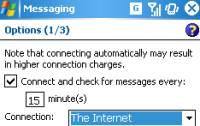 If you’re not aware of the concept of Push email, it the concept of having your email sent straight to your device without having to do a manual connection to your email account, then pressing "send and receive". If you’re not aware of the concept of Push email, it the concept of having your email sent straight to your device without having to do a manual connection to your email account, then pressing "send and receive".
Push email is normally associated with an online service such as that found on a BlackBerry, but this isn’t something normally supported for standard POP3 email. The workaround is to get your email collected at regular intervals. Here’s how to set that up: |
| What do the icons mean |
On the right are a few of the icons we’ve found on our Windows Mobile 5 device (a Qtek S200). These cover Wi-fi, GPRS, data connections, ActiveSync and vibrate. |
| Remote control your PC! |
Want to be able to access your desktop PC from your connected Windows Mobile device while you’re out and about? Find out what GoToMyPC More on our dedicated GoToMyPC page, or go to www.gotomypc.com for a free trial. |
| Skype |
Skype has released software for a range of Windows Mobile devices, and as long as your device can connect to the Internet (using Wi-fi or GPRS), then you may be able to get to use Skype. For more on Skype, see our Skype page, or go to www.skype.com |
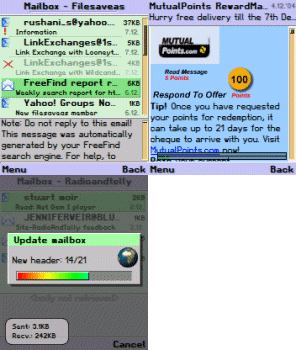 If you’re a heavy email user, you might want to have a try of ProfiMail.
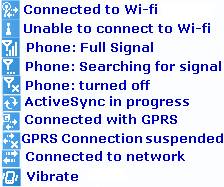 Here’s one we get asked now and again – what do those little icons on the Windows Mobile toolbar represent?
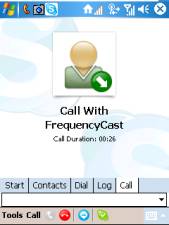 Once you’re able to connect your Windows Mobile Pocket PC device to the Internet, you may find that as well as email and web surfing, you’re also able to make use of other Internet services. One that’s well worth trying, is Skype – a service that offers voice over the Internet – with this, you get free voice calls to other Skype customers around the world, or can make low-priced calls to landline and mobile phones.