
Information, help and advice on wi-fi wireless networking, especially for mobile phones and handheld devices.
What is Wi-fi?
Wi-fi is
wireless networking – the ability to connect to a network or PC using
radio signals (as opposed to network cabling). It’s faster and has a greater range
than Bluetooth, and is ideal for home or
office connectivity. Using a wi-fi setup with your PDA or laptop means
that you can share a Broadband Advice Internet connection, swap files,
or share a printer or storage area between computer users.
Wi-fi comes in two speeds: 802.11b
(data transfer rates up to 11 megabits per second) or the newer 801.11g standard that goes up to 54 megabits per second. This
compares with Bluetooth‘s much slower speed of 0.57 megabits per second. There’s a newer standard, 802.11n being phased in that offers even faster connectivity.
Wifi 802.11b/g operates in the 2.4GHz frequency
band (also used by Bluetooth and microwave ovens), and has a typical range
of around 500 feet (with clear line of sight). Indoors, you can expect
around 150 feet with 802.11 – this will increase with the 802.11n protocol.
Got a question about wi-fi? Ask in our forum
Getting the kit
Here’s a summary of wi-fi hardware
types:
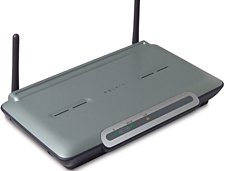 |
Allow machines to connect onto a network to share resources such
BT is currently offering a free wi-fi router, the BT Home Hub, on selected broadband packages |
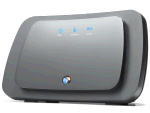 |
The BT Home Hub It’s part of BT’s long-term plan to get one of these boxes into every home. It’s essentially a wi-fi router that is used for your broadband, home phone, voice-over-Internet, and BT’s TV service BT Vision. You can also share out your bandwidth to others, using the BT Fon network. The BT Home Hub is supplied free with all Broadband packages from BT, except the basic Option 1 plan. It’s pictured here with the optional BT Hub DECT phone.
|
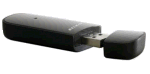 |
These little adapters plug into a spare USB port on your PC and add wi-fi functionality, at a reasonable price. Pictured here is a USB wi-fi adapter – the Belkin Wi-Fi USB Adapter, that supports 802.11n (the newer standard) as well as high-security. . If you’re looking
More: See our Wi-Fi USB Dongles Page |
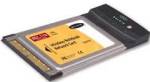 |
Most new laptops and notebooks come with wi-fi built-in, but older models don’t. For older machines, you should be able to use a PCMCIA cards that slide into a special slot on older laptops, adding wi-fi connectivity. If looking for a card, try:
|
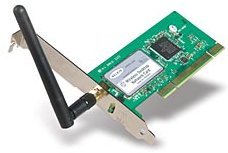 |
Wireless
Network card that plugs into a PCI slot on your computer’s motherboard. If looking
|
 |
Portable Wi-fi Modem Get a portable wi-fi modem that uses the mobile phone network. Instead of using a USB dongle for your mobile broadband, use a portable wi-fi base station for up to 3.6Mbps wi-fi Internet access without wires
|
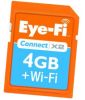 |
Into your digital photography? Here’s a nifty tool – An SD card with built-in Wi-fi? Why? Two reasons: One, upload your photos over wi-fi automatically, and two, geo-tag your location (based on nearby Wi-fi hotspots). A nice piece of technology, and at a decent price. For more information, see our Eye-Fi SD Card review |
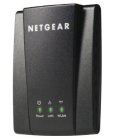 |
Ethernet-to-Wifi Adapters What do you do if you have a peice of equipment that you want to connect to the Internet, but it doesn’t have Wi-fi? This could be a printer or a digital TV. The answer is to get a converter, such as the Netgear Universal Eithernet-to-wifi converter. These are available from places like Amazon, Maplin.co.uk and PC World For more details see our Netgear Wi-fi adapater page. |
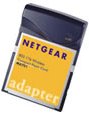 |
If you have a laptop or a Pocket PC, look for an 802.11 wireless
|
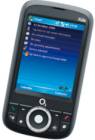 |
Mobiles & Handheld computers Many Mobile Phones and PDAs have built-in wi-fi. Three of our favourites are the Nokia N95, the o2 XDA Orbit and the Apple iPhone. You can get Windows Mobile devices from:
|
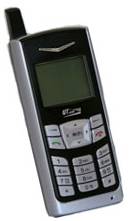 |
Wi-fi phones Get cheaper voice calls by using a wi-fi phone to route your phone calls over the Internet. Pictured here is the Vonage wi-fi phone More details at www.vonage.co.uk or on our Vonage page
|
We recommend Dabs.com as suppliers of wi-fi and Bluetooth hardware
  PODCAST FEATURE: PODCAST FEATURE: We looked closely at wi-fi in Show 40 of our technology podcast. Listen to the show online, or download it to your MP3 player. Listen to Show 40 | What is FrequencyCast? | Add us to iTunes |
Case study: Enabling
your house for broadband Wi-fi
|
Example: There are several different
If you’re looking for more Update: BT offering free wi-fi router, the BT Home Hub on selected broadband packages – see www.bt.com/btbroadband/ |
 In
In
Wi-fi connectivity problems
If you’re having
problems with your wi-fi connection, try the following troubleshooting suggestions:
|
Some general things to check |
|
| Disable Security |
Try disabling security Remember to re-enable your WPA or WEP for a secure connection. |
| Check your Firewall |
Temporarily turn off any Remember that turning off your firewall presents a risk of others |
| Check your mode | Check that both ends are using the same mode: Ad-hoc (two computers) or Infrastructure (larger network, or access point) |
|
Some specific PC things to try |
|
| Workgroup name | If connecting between PC and PC: Make sure both computers have the same network name (See ‘My Computer | Properties | Computer name | Workgroup) |
| SSID | Make sure that both ends of a connection have the same SSID (network name). On the PC, this can be set from Control panel | Network connection | <wifi card icon> | Wireless Network tab | Properties. |
| IP address problem |
If you’ve tried all of the above, chances are, there’s a problem with the IP address, subnet mask or default gateway addresses at one end of the other. Check these settings carefully. On the PC, this can be set from Control panel | Network connection | <wifi card icon> | Properties | TCP/IP | Properties. |
Wi-fi Frequently-asked questions:
Need some help with wi-fi? Need some troubleshooting advice? For specific technical questions, ask in our forum.
| What’s a WPA or WEP key? |
To stop people accessing your Internet connection or your network, you need security. Originally, this was done using WEP, but now more commonly with WPA. The basic WPA is a more secure security protocol, and should be used as a preference over WEP |
| I don’t know my WPA or WEP key! |
Both ends If connecting via work, ask your administrator. In a home setup, go |
| What’s an SSID? |
Standing for Service Set Identification, this is a string that a wi-fi network identifies the network as – a name that can use used to identify which network you’re logged on to. For machines to connect, they must have the same SSID |
| What’s the difference between Ad-hoc and Infrastructure? |
Two computers talking to each other can form an Ad-hoc network (also known as Peer-to-Peer networking). This doesn’t need anything complicated like a router, gateway or network access point. Where using a more formal network connecting to multiple machines, it’s likely to be Infrastructure. |
| Wi-fi Webcams |
This opens up a range of options, such as: wireless security camera, the ability to keep an eye on your pet while you’re at work, a door-entry camera, time-lapse photography, or covert monitoring. These are now available for under £100 More details on our wi-fi Webcam page |
| Wi-fi radio |
If the idea of a huge radio choice appeals, you may wish to take a look at the Revo range of Internet Radios. These use wi-fi to access streaming radio stations from around the world, and support Real Audio and Windows Media formats. They makes use of an existing wi-fi network to access the world’s Internet stations without relying on a USB dongle connected to a PC. You also don’t need to have your PC switched on. As an alternative, there’s also the Acoustic Energy Wi-Fi Internet Radio, which is available from Play for £150. |
| Control and watch TV over wi-fi |
Available from AdvancedMP3players. More on Radioandtelly’s Slingbox page |
| Wi-fi range |
wi-fi 802.11 has a typical range of around 140 metres (outdoors, with clear line of site). Indoors, you can expect around 38 metres with 802.11b/g – this will be less with each wall/floor the signal passes through. This increases with the newer 802.11n protocol. wi-fi devices with a decent, directional aerial can obviously get a better distance than PDAs and USB sticks that don’t have a decent aerial. If you can’t get the range you need, get a wi-fi range extender. We’ve found one at Maplin, the Network Range extender. These can be placed around your home or office to fill in dead spots or to extend range. You can also try Dabs.com for wireless network extenders. More suggestions: Listen to our podcast on the subject: Wi-Fi Issues Even wider range? wi-fi does have a fairly low range. There are proposals for a service called WiMax, which will offer a coverage measured in miles not metres, but it’s not here yet. If you need to get Internet over a wider distance – consider getting Mobile Broadband using a USB dongle. More on our USB Dongle page |
| How safe is wi-fi? | wi-fi uses radio signals. There have been scares about safety of mobile phones, but what about wi-fi? We answered this question for our podcast a while back. Check out the answer on the FrequencyCast Podcast wi-fi FAQ. |
| Apple iPhone and Touch? |
If you need help setting up wi-fi on an Apple iPhone or iTouch, see our Apple iPhone FAQ. |
| Are WiFi and Bluetooth compatible? |
Bluetooth and WiFi are both radio technologies, but they differ in the frequencies and protocols that they use. They don’t interfere with each other, but the two don’t talk to each other either – in other words you can’t get a device with Bluetooth to communicate to a device that only supports WiFi. |
| Alternatives to wi-fi |
HomePlugs, also known as Powerline Adapters use your home’s mains wiring to send and receive data. Get a pack of two, and use them for Ethernet wiring. Clever eh? More on our HomePlug page. |
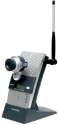 You already know what a webcam can do for you… but what about a wi-fi camera? Having a camera without wires allows you to position a webcam in a load more places, and means that you’re not required to keep your PC powered.
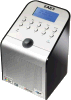 If you’re looking for a wider choice of radio, consider a wi-fi radio – these can pick up stations from around the world… stations that have made their services available as a stream over the Internet. There’s thousands of stations available.
 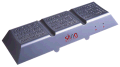 Something wifi-related for TV addicts – In June 2006, the Slingbox became available in the UK – this connects into your TV system and your wi-fi network, so that you can watch TV from elsewhere over the Internet (at work, while travelling, etc). If you have a PVR (such as Sky+), you can take remote control and set your recorder while you’re out. Clever stuff.
 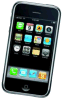 Apple’s popular iPhone and iTouch are both wi-fi enabled. It’s possible to surf the net, access emails, browse Google Maps and do a whole stack of other things with an Apple iPhone or iTouch and a wi-fi connection.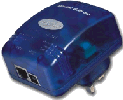
Got a question about wi-fi? Ask in our wireless networking forum
|
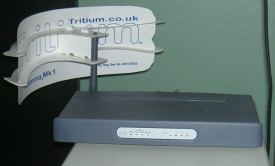
If you’re Tritium’s site boasts that the product offers a 7db increase, and The Flatenna |
 Featured
Connecting
to a Pocket PC (Windows 2002 software)
We’ve moved this section to its own dedicated page – See wi-fi on Pocket PC 2002
Connecting
to a Pocket PC (Windows Mobile 2003 software)
We’ve moved this section to its own dedicated page – See wi-fi on Windows Mobile 2003
Links:
- Wi-fi on a PDA or mobile phone– Help and advice for connecting to portable devices
- BT Home Hub – Wireless access with BT’s free 802.11N router
- Wi-Fi
Alliance
– Information on the Wi-Fi standard - Wi-Fi
/ 802.11 Specs – For advanced technical information - Wi-Fi
Forum
– For technical discussion of Wi-Fi protocols - Nintendo Wii Connectivity and Nintendo DSi connectivity help and advice
- JiWire
Access Point Locator – Huge database of access points - Wi-fi
on a Nintendo Wii – Getting a Nintendo Wii console online with wifi - Wi-Fi
Spray – Erm…
Improved wi-fi connectivity