
Psion – Get online with a Psion Device
This page offers help and advice for those trying to connect a Psion device to the Internet. On this page, we’ll try to give you some guidance on how to set up a Psion for Internet connection.
This is aimed at people with some basic technical knowledge. If you’re after a more chatty, beginners guide on what’s possible, which explains some of the basics, see our Connecting a Psion article.
What can you do online with a Psion?
With
a Psion machine such as a Series 5mx, Revo, Revo Plus, Series
7 or the Diamond Mako, you can do the following:
- Surf the web
- Access your email – Either with the Email application, or via the web (Hotmail, AOL, etc.)
- Access WAP sites (the Mobile Internet)
There’s a more chatty look at what you can do in our Connecting a Psion article.
Getting started
If you’re planning to get online with a Psion (such as a Series 5mx, Revo,
Revo
Plus, Series 7 or the Diamond Mako), then there are three things you’ll need:
|
A Psion machine with the |
|
| A modem, connected to a phone line |
There
|
| An Internet Service Provider |
Access to the Internet is provided by an Internet Service Provider (ISP). If you already have a home email account, and dialup to collect your email, you probably have everything you need – you’ll just need a copy of the settings that your PC uses to connect |
Getting an Internet
account
To connect, you’ll need to have an account with an Internet provider. You may
wish to use your existing Internet account, or apply for a free account that can
be used with your device. On this page, we’re assuming you want a new account.
If you’re in the UK, and are looking for an ISP (Internet Service Provider)
that works well with a Psion Series 5mx, Revo, Revo Plus, Series 7 or the Nokia 9210 or Diamond Mako, try:
- BT Yahoo – We recommend BT Yahoo’s pay-as-you-go account for email and web access. There’s no subscription fee and you only pay for the time you’re online (details).
Setting
up BT Yahoo on a Psion Revo / Series 5mx
Below
is a step-by-step guide for setting up using BT
Yahoo.
If
you’re not a BT Yahoo / BTopenworld customer, sign up free-of-charge for a BT Yahoo pay-as-you go account. There’s no subscription fee, and
you only pay standard rates for the time you’re online. Recommended
for on-the-move access to your email.
First, go to register.btinternet.com from a PC, and create an account. You’ll then get some details that
you’ll need to set up your account on the Psion.
Setting
up Control panel
First, set up the connection.
Go to the System Control panel and select "Internet". Select
"New" to create a new account, and choose "Based upon:
standard settings". You’ll be presented with a box with five tabs.
You only need to worry about the first two. Enter the settings as below
(substituting your own email address in the username field), and then
press "Done".
Settings in Control panel | Internet – Tab 1 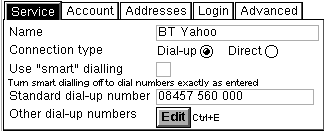 |
Settings in Control panel | Internet – Tab 2 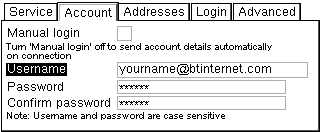 |
In the System
Control panel there are another two applets that need a quick check:
- Modems –
You’ll need to set up your modem. With luck, you can just use one
of the built-in options, such as "Infrared mobile phone",
but if not, see below for common
modem settings, and further help. - Dialling
– Settings shouldn’t need changing here, but if you need to add a
"9" for dialled-out numbers, this is where you do it.
Setting up email
If you want to
read and send email on your machine, you’ll need to set up an email account
in the Email application. Start up the Email application and from the
Tools menu, select "Add new account" and "Email".
Enter the information on the each of the three tabs, as below:
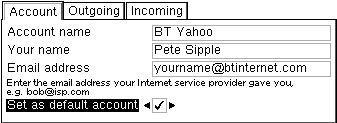
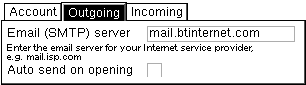
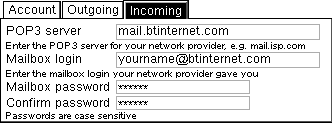
Once done, select
"Open mailbox" from the Email application, and your emails should
be downloaded.
Setting up Web
You’ll be glad
to hear that there are no specific settings you’ll normally need to enter
into your web browser. Once you open the browser, type in a web address,
and the browser will dial using the settings defined in the Control panel,
and start downloading the page
Problem
finding
If you’re having a problem getting online with your Psion, it’s almost certainly one of the following things, and you have to work though some logical steps to work out which one is the problem:
Your hardware setup – When you try to connect, does it sound/look like your modem is trying to make a connection?
- If you’re connecting via a mobile phone – look at the mobile screen … is it trying to dial?
- Listen to your modem (or listen in on the phone line). Is the modem trying to make a connection? Can you hear ‘clicks’ or that lovely connection noise with beeps and whistles?
Check out our notes on troubleshooting your hardware setup
Your connection settings – If it looks like you’re connecting to the other end, but nothing’s happening
Check out our notes on troubleshooting your connection settings
Troubleshooting your connection settings
If you find that, when you try to make a connection, the modem appears to be working and connecting, but either the call is disconnected quickly, or you see an error about a settings or password problem.
Connection settings are most likely related to a problem with your logon name, password or service provider settings. It’s important to note that it only takes one tiny mistake when entering your ISP settings to cause a problem. Double-check, then triple-check that you have the right password and username. Don’t be afraid to call your ISP’s helpdesk if you’re unsure.
Setting your connection to ‘Manual login’ (Control panel | Internet | Edit | Account) can help, as this can prove that your logon details are incorrect.
Typical logon pitfalls include:
- Sometimes usernames are in the form of a name, like johnsmith , other times these are an email address, like johnsmith@btinternet.com. BT and Tiscali use an email address as the username.
- In some cases you may find that there’s a difference between logon passwords/usernames and email passwords/usernames. Don’t get the two confused
- It could be that your Internet account details doesn’t support dial-up, or your account needs a specific dialup number
- Some Internet providers make use of your Caller Display (CLI) information to verify you. Make sure you’re not withholding your phone number. You can prefix the phone number with 1470 (for the UK) which ensures your caller ID is always sent when dialling.
If you can log on, but are having a problem with email, read the following:
- If it’s a problem collecting your email… go to a PC and visit http://www.mail2web.com – this site lets you check your email using your POP3 address, email username and password… a handy way of checking if your email account can actually be accessed remotely, and that you’re using a valid username and password
- If you can receive email, but not send email, then it’s probably an SMTP problem. See below
Still having problems? Some other things to try:
- Try using a different account. BT and Tiscali both offer free dialup accounts on a Pay-as-you-go basis. See our dialup page for some options
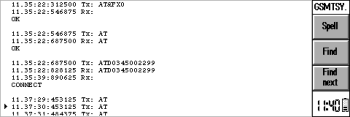
- Try creating a diagnostic log to see where in the process the logon fails
- See our Connecting page – this isn’t a Psion-specific page, but it does contain a few other options to try.
If you’re still having problems, and you’ve tried the other suggestions on this page, add a post to our Psion forum with details of the settings you’re using, the step in the log that the problem occurs, and as much other information as you can, and with luck, someone will be able to help.
Troubleshooting your hardware connection
If it looks like your Psion isn’t getting the modem to ‘wake up’ or dial the phone number, this could be a problem with the way you’re physically connecting to your modem, or the settings you’re using to communicate between the Psion and the modem.
First off, check your modem setup. The default options should be enough to get you connected, but if not, go to the System screen, select ‘Control panel’, then edit your modem settings. You could try to reduce your connection speed (baud rate) down by a couple of settings to see if that improves things.
The other settings worth looking at can be found under the Modem ‘Advanced’ tab. Modems should work fine with the standard settings, but a little experimentation with the ‘Flow control’, ‘Terminal detect’ and ‘Carrier detect’ can often resolve the problems. See our notes on specific modems below
If your modem settings look correct, here are some specific things to look at:
| General things |
|
| Connecting via a mobile phone |
|
| Desktop modem | If you’re using a PC modem, note that you’ll need a null-modem adapter. Also, check that the lead you’re connecting with isn’t faulty, or loose. |
| Using infrared | If you’re using Infrared to connect between Psion and a modem, ensure a distance of between 5 – 15cm (too close may swamp the IR eye). |
Still having problems? Try creating a diagnostic log. Then, add a post to our Psion forum with details of the settings you’re using, the step in the log that the problem occurs, and as much other information as you can, and with luck, someone will be able to help.
Other problems
| Occasional disconnections |
|
| Problems sending emails |
If you can receive,
|
| GPRS on a Psion? |
If you’re looking to connect using GPRS (faster than dial-up) on a Psion Revo, 5mx or Series 7 device, try the following links:
|
| Broadband / ADSL / Cable email |
Q. I have a Broadband Advice/cable account (e.g Virgin Media), so can’t use my Psion to collect my POP mail. Is there a workaround? A. Many broadband/cable suppliers offer dialup access too. Check with your supplier. Failing that, provided the supplier use POP3 email (as opposed to webmail), then you should be able to access your mail through another provider. Get yourself a free account with BT Yahoo and try to access your provider’s POP server. Note that sending mail from via your supplier’s SMTP server probably won’t work, so you may need to use BT Yahoo’s SMTP address. Alternatively, consider connecting with your Psion via your PC’s broadband connection… see the links below. |
- We offer
some general connectivity help on our Connected
page. Not specifically Psion-related, but worth a look - Cables /
leads? Psion Cable FAQ for some useful
links
Setup
information for specific devices
This section contains information on modem settings for specific devices:
Ericsson
R320
- Name
– Ericsson R320 , Speed – 57600 , Connect – Infrared , Fax Class – Auto - Init
(reset) – AT&D2T , Data – AT&FX0 , Fax – (blank) - Flow
– Hardware (RTS/CTS) , Terminal (DSR/DTR) [ ] not checked , Carrier (DCD) [ ]
checked , Modem type – Mobile
Ericsson
SH888 / 6xx / 7xx / DI27
- Note
– Ensure IR switched on (Activate IR, Yes), ‘Data menus’ (under Settings) is on,
and select ‘Data’ in the ‘Next Call Type’ menu. - Name
– Ericsson , Speed – 115200 , Connect – Infrared , Fax Class – Auto - Init
(reset) – ATZ , Data – (blank) , Fax – (blank) - Flow
– Hardware (RTS/CTS) , Terminal (DSR/DTR) [ ] unchecked , Carrier (DCD) [ ] checked
, Modem type – Mobile
Motorola
Timeport 260 / 7089, P7389, T250
- Name
– Motorola , Speed – 115200 , Connect – Infrared , Fax Class – Auto - Init
(reset) – AT&F&K5 , Data – (blank) , Fax – (blank) - Flow
– Software (Xon/Xoff) , Terminal (DSR/DTR) [ ] not checked , Carrier (DCD) [ ]
not checked , Modem type – Mobile
Thanks
to Mike McConnellNote that using a Motorola phone
with a Series 5mx requires the Mobile Connectivity patch from Psion.
Nokia
8810
- Note:
IR must be activated using Menu 9 - Name
– Ericsson R320 , Speed – 57600 , Connect – Infrared , Fax Class – Auto - Init
(reset) – ATZ , Data – (blank) , Fax – (blank) - Flow
– Hardware (RTS/CTS) , Terminal (DSR/DTR) [ ] checked , Carrier (DCD) [ ] checked
, Modem type – Mobile
Nokia
7650
The Nokia
7650 can connect to the Internet for WAP and Email directly. See our 7650
WAP and 7650 connectivity pages.
It’s also possible to use the 7650 as a modem for your Psion. Here are the settings
needed to get the 7650 to behave as a modem:
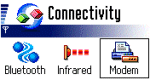
- Note:
IR must be activated via the ‘modem’ option under ‘Connect’ - Name
– Nokia 7650 , Speed – 9600 , Connect – Infrared , Fax Class – Auto - Init
(reset) – ATZ , Data – (blank) , Fax – (blank) - Flow
– Hardware (RTS/CTS) , Terminal (DSR/DTR) [ ] checked , Carrier (DCD) [ ] checked
, Modem type – Mobile
Nokia
5110, Nokia 6110 and Nokia 6150
- Although
these phones have IR ports, they either don’t have a built-in modem, or they don’t
use standard infrared protocols. Accordingly, it doesn’t appear that it’s possible
to connect to the Internet over IR directly. Using these in association with a
modem, such as the Psion Travel Modem, may be an option, provided you can obtain
the appropriate connector to go from the Nokia to the Travel modem.
Nokia
9210
See our dedicated Nokia 9210 setup page
Pegasus
II Modem
- See 3JTech’s
manuals page for a downloadable PDF file with details of setting
up the modem with a Series 5
Siemens
C35 / M35 and S35
- Name
– Siemens , Speed – 115200 (Set to 19200 if using serial cable), Connect
-Infrared , Fax Class – Auto - Init
(reset) – AT&F , Data – AT\Q1 , Fax – (blank) - Flow
– Software (Xon/Xoff) , Terminal (DSR/DTR) [ ] not checked , Carrier (DCD) [ ]
not checked , Modem type – Mobile
WAP
with a Psion
Using
the Psion WAP browser (supplied with newer
machines such as the Revo
Plus), you can browse WAP sites from your Psion. The
browser runs on the Series 5mx, Revo,
Revo
Plus, Series 7, Diamond Mako and netBook. The browser’s excellent bookmark management,
plus the fact that a Psion’s screen and keyboard is larger that those of a WAP
phone, make the whole WAP experience much better.
- Psion
WAP browser – Details
on the browser, plus patches. - o2
online – Not useful for Web and email, but useful for free
text and an inclusive GPRS WAP allowance (details). - WAP
information – Details
on WAP, gateways and resources.
Connecting
to the Internet via a PC
You may be able to connect your Psion device to your PC, then to use the PC’s Internet connection on your Psion. Here are some links to take a look at:
- PassThru32
– Get your Psion to make use of your PC’s modem to make an Internet
connection - MochaPPP
– Use this application to make use of your PC’s Internet connection
for faster access to the ‘net via your Psion (MochaPPP setup information)
|
More on our Asus Eee PC Page |
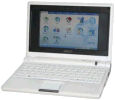 Want a Psion replacement? Consider the Asus Eee range. Pictured here is the
Other resources
- Psion
Support’s Knowledgebase – Including guides for connecting to specific
makes of mobiles. - Mike
McConnell’s site – An excellent list of resources, downloads and
troubleshooting tips for getting online - Getting Connected – A copy of the 2000 Palmtop Magazine article outlining how to get connected with a Psion
- PsiWin Explained – Article on Psion’s PC connectivity program, PsiWin
Questions?
- Please
ask them in our Psion
connectivity forum