Home
P800
software
P800
forum
P800 Wap
Connecting
P800
Travel news
Mobile
phones
WAP
SMS
MMS
GPRS
Smartphones
Mobile
FAQ
o2 online
Help
forum
Mailing
list
|
SonyEricsson:
P800 Smartphone
Links:
- AllAboutSymbian
- Useful resource for details of the Symbian
Operating system.
- Handango
- 100's of shareware titles for Symbian OS phones HOT!
- My
Symbian downloads - Great place to download P800 UIQ software
- Carphone
Warehouse
- Great for spares and accessories for your P800
- P800
manual
- Download the P800 manual in PDF format
- Club
Sony Ericsson
- Unofficial P800 page with spec, manuals and software
- NewLC
- Site for Series 60 and UIQ developers to help build better software
for smartphones
- P900
info
- Details of the successor to the P800
- 3-Lib
P800 Tips
- Top tips on getting more from the P800
- Esato
forum
- P800 discussion forum
- Palmtop
User
- Full colour magazine published in the UK, containing coverage
of all Symbian OS products. The magazine was previous known as Palmtop
Magazine.
- O2
online - UK mobile phone network operator, offering free
SMS text and Wap access
- P800
EMame
- P800 port of the arcade game emulator
- P800
forum and P800 comments
- have your say on the P800
- Help
with Bluetooth -
Information on connecting to a P800 with Bluetooth
FAQs
| How
can I connect the P800? |
It's possible to use your P800 to
connect to the Internet to browse the web via the built-in browser,
check your POP or IMAP email, and look up WAP sites.
See our pages on P800 connectivity,
and using WAP on a P800 |
| How
do I get my email? |
The
P800 lets you access your email via POP3 or IMAP (typically what
you use with Outlook Express). You can send and receive email
using a standard dial-up service, or over GPRS.
We've created a page dedicated to getting up-and-running with
email on a P800. See our P800 connectivity
page for more details.
For details of AOL and
Hotmail, see the dedicated FAQ below.
|
| How
do I connect my P800 to my PC? |
The P800
can connect to a PC via Bluetooth (P800 conforms to Bluetooth
v1.0), infrared or by cable. Here is a summary of how to connect your P800
to your PC:
-
IR connection.
From the P800 menu, go to 'Control panel', select 'Settings'
and 'Infrared' to turn the phone's IR on. Line up the phone
with the PC infrared port, and Windows should detect the handset.
Then, use the Sony Ericsson connectivity package to select the
file you want to send to the P800.
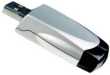
There are several IR adapters available, including the pictured
'USB-IRDA Adaptor' from Maplin
Electronics (Cat no: RV88V).
-
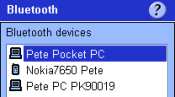
Bluetooth
connection. From the P800 menu, go to 'Control panel', select
'Settings' and 'Bluetooth'. From the 'Settings' tab, set 'Operation
mode' to "On", then move back to the 'Devices' tab.
This should show you all Bluetooth devices in range. If your
PC isn't shown, press 'Add' and let the P800 search for the
PC connection. When the phone and PC are paired, use the Sony
Ericsson connectivity package to select the file you want to
send to the P800. If your PC doesn't support Bluetooth, then you can add it cheaply and easily using a USB
Bluetooth adapter. We recommend the Belkin
USB Bluetooth adapter available for around
£15 from amazon.co.uk.
-
Memory card reader.
If you don't want to beam files from your PC to the phone, another
option is to make use of the Memory Stick slot in the P800.
Get hold of a Memory card reader
for around £20 and copy files onto a Memory Stick card plugged
into your PC. Find out more on our Memory
card page.
Files received
on the P800 can be found in the 'Beamed' folder of the Messaging
application.
The SonyEricsson
PC Suite for the P800 can be downloaded from the SonyEricsson
Global Support site in a variety of languages |
| Help
with Bluetooth |
The
P800 has built-in support for Bluetooth for wireless file transfer,
copying files to and from a PC, and beaming of business cards and
other files to other mobile phone/PDA users. Access to the Bluetooth
settings screen is done via the menu's Control panel option, and
the "Bluetooth" option under the 'Connections' tab.
For more on Bluetooth, see our dedicated Bluetooth
page.
|
| Where
do I get software for my phone? |
If you're looking to enhance your Symbian phone by adding new software, take a look at Handango for a great collection of add-on software, utilities, applications and games for this phone.
For ringtones, wallpapers and Java games, try Jamster |
| Accessories? |
There's
a wide range of accessories, including spare batteries, cases, chargers,
in-car kits, hands-free, cables and fascias, at Carphone
Warehouse |
| How
do share my pictures with others? |
Once you have taken a
picture on your phone, there are three ways to get the files from
your phone to other people or computers:
- You can copy it to
your PC with the Sony Ericsson software supplied on the CD .
Depending on what you have connected to your computer, you can
use cable, Infrared or Bluetooth. Set your PC to receive files
(using the IR or Bluetooth software supplied with your adapter),
select the photo to send, then select "Send as" from
the menu.
- You can use the Messaging
application and email the picture to yourself (or a friend)
- Send the picture to
another mobile using MMS. Costs of sending
pictures by MMS differ depending on which network operator you're
with. Take a look at our MMS page for
more.
|
|
What's
my phone's serial number? |
Enter
'*#06#' as if it were a phone number, to get your handset's serial
number (known as the IMEI) - useful to keep a note of in case your phone
is stolen. You may also need this number when registering certain
types of software. |
| Who's
calling? |
A great feature of UIQ
is the ability to add a thumbnail to a contact. Take a picture of
a friend with the camera, then open the person's contact, edit it,
and add the image as a thumbnail. The photos are in JPG format,
so you can use images from digital cameras or scanned images. Build
up a mini-library of pictures, and get a name and face to appear
when a call comes in. Mobile phones identify callers using a service
called CLI. For more details, see our CLI page
If you're finding that only the person's number is being displayed
even though you have the name entered in Contacts, this is probably
because you have the number in the phone twice (perhaps once on
the phone memory and once on the SIM card - in this case, the phone
doesn't know which entry to use. |
| Version
number |
This is how to get at
a P800's version number:
- Go to main application screen
- Select 'View' from the menu
- Select 'System information' (there are two
pages of info)
|
| How
do I install software without IR or Bluetooth? |
If you don't
have the ability to beam files to the P800 via Bluetooth
or infrared (either from another handheld device or from a PC),
then you may wish to purchase an IRDA or Bluetooth adapter for
your PC (this means you'll be able to install software, backup
and synchronise your P800).
The alternative, is to email the file that you're trying to install,
typically a SIS (Symbian installation file) to your own email
account, and then use your P800 to logon to your email (details)
and download the SIS file as an attachment into your P800 Messaging
application.
Many files
are distributed in a compressed form (using the ZIP file format).
|
| ZIP files |
If you're trying to install a file with a .ZIP extension, note that this means it has been compressed (to save space or reduce download time).To get to the file, you'll need to unzip it first.
You can do this with a PC application such as WinZip, or on the phone itself using the ZipMan or Zipper application. |
| How
to access the Services Menu |
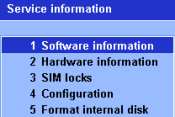
The
P800 has a 'hidden' service menu that allows you to access serial
numbers and format the Internal drive. This can be accessed by closing
the flip, then following this sequence:
Jog-Dial up
*
Jog-Dial down
Jog-Dial down
*
Jog-Dial down
* |
| Can
I use the P800 as an MP3 player? |
Yes. The P800 supports playback of MP3, WAV, AMR
and AU file formats. Audio can be loaded onto Memory
Stick Duo cards as required |
| Travel
News |
Traffic-i
- Receive live road traffic information from the Trafficmaster network
direct on your P800 over GPRS. Find out
about road issues in your area, plus an indication of the speed
of traffic on motorways and major A roads.
For more on this application, how to set it up, and details of using
this on the move, see our dedicated Traffic-i
page
For more information on mobile travel news, see our Travel page or our PDA-friendly Mobile Travel page. |
| Hotmail
and AOL access? |
Hotmail and AOL use proprietary email systems,
as opposed to the more common POP email systems - this makes it tricky to access mail on a mobile device. For email on the move,
consider using a standard POP3 provider such as BT Yahoo (see setup details) that offers free email accounts that can be configured on mobile phone email programs.
If you
want to access your Hotmail or AOL email, there are a number of options:
- General: Try using a web browser on your phone (such as the Opera browser) to access Hotmail / AOL's service via their webmail
interface.
- Hotmail: Use
the built-in WAP browser and from 'Services', enter the URL http://mobile.msn.com , and you'll be able to access
your Hotmail mail via WAP. There are some complications with
this option, which we've detailed on our WAP
page
- AOL:
We've also been directed to
an AOL
Mail FAQ that suggests that a suitable email program can be configured to get email access via
IMAP (as opposed to POP3). Many smartphones and PDAs support IMAP (check in the email section). For devices that don't support IMAP, you can download one from Handango
- AOL: A posting
in our forum suggests another option: Open AOL. Go to AOL
Keyword. Type 'AOL Mobile' . Open AOL on your Mobile. Under
Get Started, Open 'Sign up now'.
For
more help, see our Connected? page |
| Can
I use MSN messaging |
The
P800 doesn't come with an instant messaging MSN client built-in,
but third-party MSN clients are available. Take a look at handango.com for the range, or take a look at the jMSN
for UIQ application. |
| Alternative
connectivity software |
Rather than the software
that came as standard with the phone, there's a rather useful
third-party application called Oxygen II - This application supports Contacts, Calendar,
Messaging and file management.
For details of how this works, take a look at our Oxygen
page |
| Receive & send
faxes on your mobile |
If you
need to receive faxes, but don't have access to a fax machine, take
a look at efax.com. They'll give you a fax number, and forward faxes direct to your email account as an attachment. You can then use the messaging application to retrieve
your faxes on the move. You can also use this service to send faxes.
For details, go to www.efax.com. |
| Can
I use the P800 in the States? |
Yes.
The P800 is a tri-band phone operating on EGSM900/1800 (Europe,
Africa, Asia Pacific), and GSM1900 (USA, Canada, South America). There should be no problem
using the P800 with network operators in these countries. Roaming
restrictions from your network operator may prevent use of some
services in other countries. |
| Where
can I find out more? |
Consider
subscribing to Palmtop User.
This full-colour magazine carries articles and information about
the Symbian Operating system, as well as Pocket PC and Palm OS.
Issue 6 contains a review of the P900, and issue 4 covers the
P800
The magazine features reviews of new hardware and software, is packed
with useful articles and a host of information relevant to all users
of handheld computing hardware such as smartphones and PDAs. Available
worldwide by mail-order |
Other
questions? Ask them in our P800
forum, and we'll add them here
Is this page correct? Something wrong or missing on this page? Report a site problem
Please help us correct the problem and to keep the site up-to-date.
If you're looking for help, please don't use this option - instead use our forum |
Copyright © 2003-2008 Filesaveas. Terms
|