
This page was created to help users that are trying to connect their Windows laptop or Pocket PC to the Internet using GPRS.
If this isn’t what you’re looking for, the following pages may be of help:
Setting up GPRS on a Smartphone
Setting up GPRS on a Windows Mobile device
UK Network Settings for GPRS, WAP and MMS
GPRS on a laptop
Below is some information on how to configure your laptop for use with a GPRS-enabled mobile phone, for Internet access:
- On the PC, go to the Networking section of the Control Panel (Start > Settings > Control panel > Network)
- Select "Make new connection" (this should start a setup wizard)
- Choose "Dial up to Internet"
- Choose the "connect via a modem" option
- Enter the telephone number to dial as *99# (No area code, and turn off dialing rules)
- Select the username and password for your Network Operator (GPRS settings here)
- When complete, go to Control panel > networks, and right-click on the icon for your GPRS connection. To need to set the following:
Connect Using – select your modem (infrared / USB / Bluetooth)
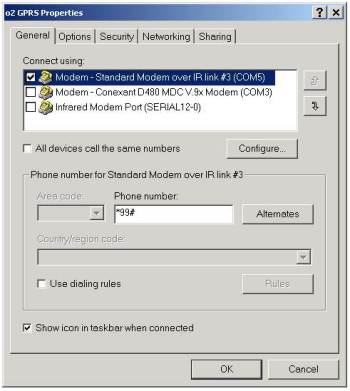
You need change one other thing – to do with your modem settings. Do this as follows:
- Go to Start > Settings > Control panel > Modems
- On the Modems tab, select your modem, and press Properties
- On the Advanced tab, you need to enter string in "Extra initialization commands". This initialisation string will need to be entered as:
+CGDCONT =1,"IP","apn.address" – you should substitute apn.address with the name of the GPRS APN that you wish to connect to. For o2 Internet access, this is mobile.o2.co.uk and for Vodafone, this is internet. See the table on our GPRS page for the UK settings. Also, note the space before the =1.
To set whether you dial using the modem over GPRS, or a different connection, check the settings in Internet Explorer > Tools > Internet Options > Connections.
To make the connection, you’ll need to have your mobile phone switched on, set-up for Internet access, and set to operate as a modem (IR/USB/Bluetooth). See our Connect page for help on setting up a mobile for GPRS, and our GPRS page for help with UK settings.
|
Worth considering!
|
.
GPRS on a Windows Mobile Pocket PC
Below is some information on how to configure your Windows Mobile Pocket PC for use with a GPRS-enabled mobile phone, for Internet access.
This section makes the following assumptions:
- You have a GPRS-enabled mobile phone with an Internet-enabled SIM card
- You can establish a connection between your phone and PDA (by Bluetooth, cable or Infrared)
- You are using a Windows Mobile 2003 Pocket PC machine
If you’re struggling with any of the above, try our Windows Mobile Connectivity page first
To set up a Pocket PC for Internet access over GPRS, on the Pocket PC, do the following:
- Go to Start > Settings, go to the ‘Connections’ tab, and select ‘Connections’
- Under "My ISP", select "Add a new modem connection"
- Enter the name of your network operator, e.g. "Orange" and select the modem connection you want to use ("Generic IrDA" or Bluetooth), then press ‘Next’
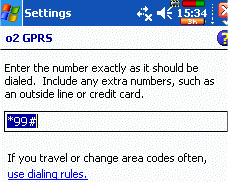
- In the phone number field, enter *99# , and then press ‘Next’
- Enter the username and password required to access the Internet Access Point (APN) you’re trying to connect to (check the APN listings on our GPRS page) .
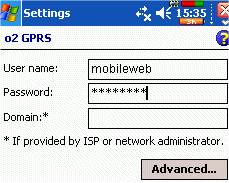
- Before pressing Finish – You need to press on the ‘Advanced’ button to change some settings – untick "Wait for dial tone", and add the following string to the extra dial-string commands:
+CGDCONT =1,"IP","apn.address" – you should substitute apn.address with the name of the GPRS APN that you wish to connect to. For o2, this is mobile.o2.co.uk and for Vodafone, this is internet. See the table on our GPRS page for the UK settings. Also, note the space before the =1. Press ‘OK’ to close the Advanced screen, then press Finish.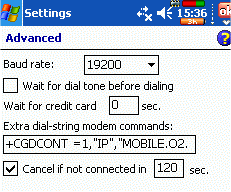
- Close the ‘Connections’ dialog with the ‘OK’ button
| If you’re having any problems, try our Connectivity Help page |
Issues
| Windows Mobile 6 issue |
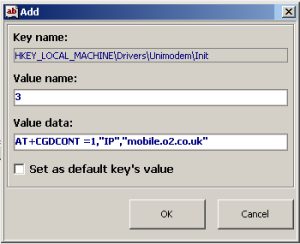
It seems that in Windows Mobile 6, the "Extra dial-string modem commands" box has been removed, making it difficult to add a modem string to send to a GPRS mobile phone. Thanks to site visitor Dave R for suggesting the following work-around. Note that this involves editing the registry on your device, and you do so at your own risk!
Update: We heard from a site visitor with the following. Doesn’t match our experience, but may help you. "the new string needs to have < cr> at the end of it to work" |
Links:
- Email and Web on a Pocket PC – See our Pocket PC Connection page
- Connection problems – See our troubleshooting page
- O2
online – for mobile web, including GPRS tariffs, the inclusive GPRS WAP allowance
and free SMS texting