
If you use a TomTom navigation product, chances are you can make use of a Safety Camera database. On the page, we give you the options.
What is a Safety Camera Database?
Loathed by most motorists in the UK, it looks like speed cameras are here to stay. Aside from the argument about whether these cameras save lives, or simply generate revenue, when you’re driving, being aware of the location of safety cameras is a good thing.
With a TomTom SatNav device, you can keep track of local speed camera, frequent mobile camera area, and junctions monitored with a red-light camera.
You can use a camera database with
products including the TomTom Go range, TomTom One, Navigator, and TomTom Mobile.
Safety Camera Databases
You have three main options for a UK database:
- Subscribe to TomTom’s own traffic camera database. Subscription costs €29.95 a year, which covers you for 10 European countries. Subscribe via http://www.tomtom.com/plus/ or get a GPS subscription card.
- Use the PocketGPS Safety Camera database. Until March 2006, this was available for free, but now they’ve introduced a small charge – you can subscribe for a year’s worth of updates for £19. Download from www.pocketgps.co.uk/subscription.php
- There’s now a free speed camera option too, that can be used on TomTom devices – check out trapster.com
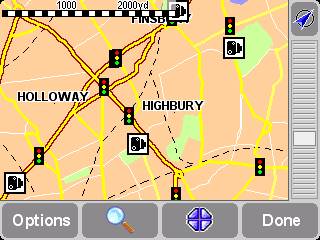
Installing the PocketGPS Safety Camera database:
Some basic instructions on how to install the UK Speed Camera database:
- Download the latest version of the database from www.PocketGPSWorld.com/uksafetycameras.php
- Unzip all of the files into a folder on your PC. (If you need an unzip program, use Winzip). When unzipping, don’t use WinZip’s "Use folder names" option – this means that all of the files go into a single folder, as opposed to being unzipped into several folders.
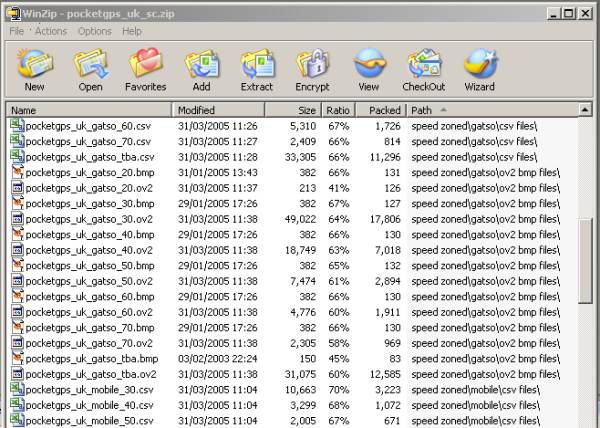
A screenshot of what’s inside the ZIP - There are lots of files in the ZIP file (over 220), which you may want to experiment with later, but we’re going to start with the basics. We suggest you copy just the GATSO, Red-light and Mobile camera overlay files. To do this, you need to copy just the files we’re about to list from the ZIP file onto the TomTom device. These need to be manually copied to the same folder on the device as the one that holds the TomTom UK map files. To do this:
 On a Go or One: Connect the One to your PC with the USB lead, then use Windows ‘My Computer’ to open the "TOMTOM" drive. Once you have opened the drive, you will see a number of files and folders. Double-click the map folder. In the UK, this called Great_Britain-Map. The folder will open to show a number of files, including some called cline, cnode, cname, etc.
 On Navigator or Mobile: You’ll need to copy some files over to the device These need to be manually copied to the same folder on the device as the one that holds the Navigator map files (which are called cline, cnode, cname, etc). To copy files from the PC, make a connection to the device (On a Pocket PC, this is with Activesync), open My Computer > Mobile Device, then drag the files we’re about to list, into the correct folder.
- You then need to drag or copy the following files from the camera database into the map folder:
– pocketgps_uk_gatso.ov2
– pocketgps_uk_gatso.bmp
– pocketgps_uk_redlight.ov2
– pocketgps_uk_redlight.bmp
– pocketgps_uk_mobile.ov2
– pocketgps_uk_mobile.bmp - Once you’ve copied the files, the contents of the map folder should look something like this screenshot. Now disconnect the device from the PC
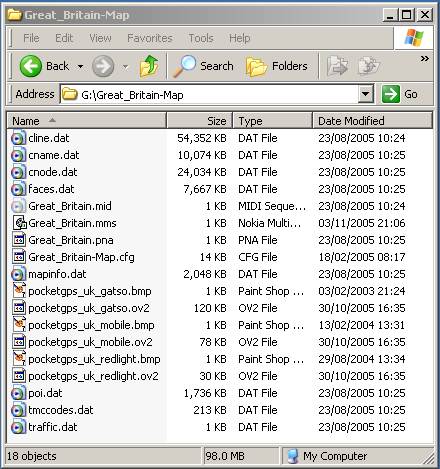
Example of camera files together with the UK map files
- Start up the TomTom device / software, go to the menu, select "Change preferences" and select "Manage POI"
- Select "Enable / Disable POI" and select the speed camera POIs you’ve just copied. Then, press "Done"
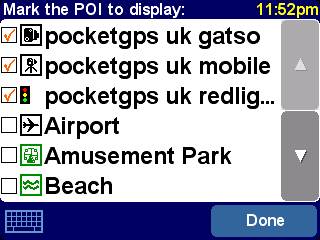
Example of camera files together with the UK map files
- You may want to set "Warn when near POI" to get an audible notification when you’re approaching a camera
- When you next view a map or use Navigate, you should see the cameras
The default set of camera files should take up only around 250k of space, so will fit comfortably on the 128Meg SD card supplied with the UK version of the TomTom One.
The Camera Database ZIP file contains a number of other files, such as files for 20, 30, 40 mile-per-hour cameras – see the readme file in the ZIP file for details of these other files.
If the camera files aren’t being picked up in the ‘Manage POI’ view, then you’ve probably copied the wrong files, or put the right files in the wrong location. If you have a problem, take a look at our image of our map folder above, and compare it with yours, to double-check that you have the same files in the same folder (ignore the file dates).
|
Got a question, or need help? Ask in our TomTom Sat Nav forum
|
TomTom Safety Camera FAQ
Some frequently-asked questions about TomTom products and using a camera database…
| How much space ? |
The default set of camera files that we’ve listed above only takes up around 250k of space. If, for any reason you don’t have enough space available, consider deleting any voices or other POI files that you don’t need. You could also consider upgrading to a larger memory card |
| Audio alerts |
Once you have a speed camera database loaded, it’s possible to set up an audio alert to indicate when you’re approaching a camera. To do this, go to Menu > Change Preferences > Manage POI > Warn when near POI. Then, select the POI database. At the "Warn when closer than" screen, enter a distance, then on the next screen, select a sound. |