
On this page, we list the solutions to common problems that the FileSaveAs
editorial team have come across in the past – problems that have been
so tough, we couldn’t find an answer, so added it to this page.
Error: "Unable
to open the file medctroc.inf"
(Appeared when
trying to Add/Remove a built-in Windows XP application)
Managed to resolve this by assuming the file was corrupt and replacing
c:\windows\inf\medctroc.inf with the copy found in C:\windows\ServicePackFiles\i386.
Outlook problem:
"MAPI was unable to load the information service PSTRRX.DLL
Error appeared
trying to start Outlook 2002 after messing around with an old version
of Outlook 2002 on a secondary user. Article
293058 on Microsoft Knowledgebase is helpful. Suggests installing
Office XP Service Pack 1, which was already installed. Tried installing
again, but was told it was installed. Tried uninstall of Outlook, then
downloaded large Service Pack. Didn’t fix it. Eventually, all I had to
do was a quick fix in Control panel: Control panel | Mail | Show profiles.
"Use this profile. Always use this profile:". Change this to
"Outlook". Don’t know if the Service Pack helped, but try this
before downloading the SP, just in case.
DVD Playback with audio stutter
For no obvious reason, playing back DVDs on our Windows XP PC suddenly started playing up. The video appeared to be playing correctly, but the audio was stuttering and ‘cracking’. The problem was apparent with different media players, including Windows Media Player and VLC.
It seems that this is not an uncommon problem – The DVD drive has changed modes from DMA to PIO. An online search brought us to this site: winhlp.com/node/10, and step 6, a quick deletion of ‘MasterIdDataChecksum’ in the registry at this location: HKEY_LOCAL_MACHINE\SYSTEM\CurrentControlSet\Control\Class\{4D36E96A-E325-11CE-BFC1-08002BE10318}, followed by a reboot, solved our problem.
Right-clicking on the
hard drive icon in "My Computer" causes the application to stop
responding
Sorry, but we
don’t have the answer to this one yet. All we know is that something causes
the XP explorer.exe program to terminate. We’re tried Knowledgebase, a
Google search, and everything we can think of. We’ve also found emails
from people in the same boat. A re-load of Windows key files (using the
SFC DOS command), one suggested solution, didn’t help. If you can help
with the answer, please let us know.
Missing
information on web pages
 If
If
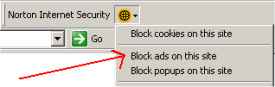
you’re finding gaps in some web pages where you’d expect links to be (see
the example to the right), this is probably because the links go to known
advertisers and are being blocked by software on your PC (Normally
Norton
Internet Security). This package enables ad blocking by default,
which means that many links online don’t work. You can choose to disable
this for the specific site you’re trying to view, or disable the feature
completely.
- Disabling Norton’s
Ad Blocking: Start
Norton Internet Security, go to Norton AntiSpam, Select "Ad Blocking",
press "Configure" and untick "Turn of Ad Blocking".

- Disabling ad blocking
for just one site: On the Internet Explorer toolbar, you should find
a Norton Internet Security icon – click this, and a menu should appear.
Untick "Block ads from this site"
Error: "Fax printers
are inaccessible"
If you have a
problem with fax printing from Windows XP, and see "connection error"
or "All fax printers are inaccessible" in the "Fax Printers
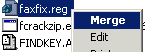
Status" area, try running faxfig.reg.
 This
This
is a small registry file that fixes the Windows XP problem with the fax
monitor. clicking this file adds a registry entry to fix the problem.
Save the file onto the hard-disk, then from File Explorer, right-click
the file and select ‘Merge’.
McAfee: Unable to press pop-up buttons in McAfee Internet Security
After upgrading to Mcafee Internet Security 2010, we were finding that many of the pop-up screens (e.g. Program wants access to the Internet – "Allow Once", "Allow Always", "Block Access"). Not being able to press buttons or close dialog screens made using McAfee a nightmare. A full re-install didn’t help.
The fix: We used the online chat service on McAfee’s website to get some advice. Seems it was a problem with Internet Explorer. We had to reset IE. Here’s what we were instructed to do:
- Open Internet Explorer and go to Tools > Internet Options > Advanced. Select "Reset to default settings"
- Next, In Internet Options, delete browsing history (Temporary Internet folder and Cookies)
- Then, we were pushed a file to run – McPreInstall.exe (Sorry, we don’t have a copy)
- Then, we were pushed a file to run – IERegFix.bat (We’ve seen this online elsewhere)
After this, we rebooted, and all was well.
McAfee Security: Internet Explorer Script Error
On re-installing
McAfee Internet Security, we saw the following: "An error has occurred
in the script on this page. Error: Object required: ‘objFileSystem’ URL
mcp://D:\Mis\end\misins.dll::default"
The fix (running Windows XP Service Pack 2), was as follows: Press ‘Start’,
select ‘Run’, type ‘cmd’ and press ‘Ok’. in the black DOS box, type ‘regsvr32
scrrun.dll’ and press the Enter key. Trying to install again worked after
doing this.
Error: "Microsoft Synchronization Manager has encountered a
problem and needs to close."
We’ve seen this
message pop up on a regular basis when MS Internet Explorer performs a
scheduled synchronisation. It transpires that this was an issue with our
firewall software, and this application crash happens when the mobsync
application can’t access the Internet.
The fix: To correct this, we set our firewall software to allow
full access to the mobsync.exe application, which is in the c:\window\system32
folder
Can’t view content
of an Internet Explorer Notice message
This one has annoyed
me for a while. I use Internet Explorer’s ‘Synchronize’ feature to email
me when the content of a website has changed. Once a day, the browser
connects, and sends me an email if the site differs from the version in
the cache. This is set using the "When this page changes, send email
to" box. I get an email sent to me with the subject "Internet
Explorer Notice:" and the page title.
When I view the email at work, I can see the entire page in the body text
area, but at home, the body text area is blank. I think I may have discovered
the problem, but there may not be a solution. Looking at the raw text
version of the email shows that its from the Internet Explorer 5 Information
Delivery Agent, and it uses a FRAMESET to display the content of the webpage.
It looks like Outlook 2000 can cope with framesets, but Outlook 2002 has
a bug. Microsoft has confirmed this to be a bug, but as yet, there’s no
fix. See Knowledgebase
ID 289961.
Norton AntiSpam could
not find an address book to import
We’ve found this
message using the new AntiSpam application that comes with Norton Internet
Security 2004. We’re using Outlook 2002 on Windows XP, and the address
book we use is Outlook 2002’s Contacts folder. No idea why this shouldn’t
work, but we found a way around it. We don’t know exactly which part of
the following process fixed the problem, but here’s what we did…
- Go to Start | Settings | Control
panel | Mail | Email accounts | Directory | View or change - Ensure there’s only one address
book - Uninstall Internet Security,
and re-install
The only other clue is that we
installed over the top of Internet Security 2003. By doing the uninstall,
we may have also removed some old settings left by 2003.
Update: Thanks to Kelvin for the
following: "It isn’t necessary to uninstall and reinstall Norton
Internet Security (or Norton Antispam). I was able to resolve the error
by the following: Close Outlook. Go to Control Panel/Mail/Email Accounts.
Choose View or Change existing directories or address books. Remove Outlook
Address Book. (This does not delete your actual contact information.)
Choose Add/Additional Address Books/Outlook Address Book. Open Outlook.
Right-click on Contacts and choose Properties. Choose the Outlook Address
Book tab. Make sure the checkbox "Show this folder as an e-mail Address
Book" is checked. You will now be able to import the addresses into
Norton Antispam.
Outlook Email Problem:
0x8004210A
This one affected
our office machine on a regular basis, causing Outlook to stop downloading
new emails – reporting a POP3 timeout error 0x8004210A. It seems that
this is caused by a known defect in Norton Internet Security 2004. Common
advice revealed by a Google search seems to be to disable email scanning,
but we found a better solution courtesy of the following snippet in a
NewsGroup
posting – worked for us, and may work for you:
- Open the main Norton Internet
Security application - Select ‘Personal Firewall’
- Click on the ‘Configure’ button.
- Go to the ‘Programs’ tab.
- Scroll down to the entry for
‘Microsoft Outlook’ - Change the ‘Internet Access’
option to "Permit" and Category to "General." - Press ‘OK’, then close the
dialog. - You will need to restart Outlook
(or better still, reboot the PC).
Failing that, disabling email
scanning may be the option – For information on how to do this and more
info, see the Symantec
Support question
Update (Jan 2005). OK – we give
up. This seems to be a defect that Symantec has known about for a while,
and refuses to fix – and we’re not keep on the "just turn of email
virus scanning" fix – kind of defeats the object. As Symantec can’t
supply us with a stable Antivirus package – we’re now using McAfee
AntiVirus software,
and if you’re having this problem – we suggest you do likewise! Comments?
System Restore / McAfee Install problem
For no good reason, one day "stuff" started going wrong – with the following symptoms:
- Unable to use System Restore – Accessing the application brings up[ a blank screen with no calendar
- McAfee AntiVirus broken – Event log reports " Number of signatures in EXTRA.DAT : None"
- Sudden loss of some time of Internet access, even though packets get through
- "Unable to set up frame window. Exiting…" when trying to re-install McAfee Internet Security Suite 2007
It took two different fixes to get this resolved.
- Start > Run > ‘regsvr32 /s jscript.dll’ resolved the System Restore blank screen issue – it seems the Registry lost the javascript registration.
- The file IERegFix.bat from McAfee brought back Internet connectivity and allowed a re-install of McAfee.
URL in a Yabb forum
The way to add
a hyperlink in a Yabb forum message without displaying the full URL path,
is to insert the URL in the following way… [URL=https://www.filesaveas.com]Click
here[/URL]. This makes the link appear as "click here" not https://www.filesaveas.com
– Useful for hiding long web addresses.
Backslash at the start
of path on file install
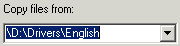 When installing drivers on our XP machine, we’re prompted with the "Files
needed" dialog. When we select a file, for instance "d:\drivers"
where we’re prompted to enter where to "copy files from", the
path is returned to us as "\d:\drivers\" – in other words with
a backslash added to the beginning of the path. Installation can’t continue.
The only workaround we’ve found, is to copy the files onto the c: drive,
and specify the path without the "c:", so in our example, we
copy the file into "c:\temp" and specify the path as "\temp".
If you can help with the answer, please let us
know.
Error: "Cannot
read subscription data. You may need administrator privileges"
This is a Norton
Antivirus 2003 error message that appears to pop up at random (Windows
XP). Tried several solutions (including re-downloading Live Update and
Live Reg, as advised by Symantec. An un-install, then a re-install of
Norton Anti-Virus solved this.
Update: Aug 2003. Thanks to Mike for supplying the following solution
from Norton:
Windows XP
Professional (You must log in as Administrator to do this).
- Click on Start,
then click on My Computer. - Navigate to
the following folder: C:\Documents and Settings\All Users\Application
Data - In the right
pane, right-click the Symantec folder and then click Properties. - Click the Security
Tab. NOTE: If there is no Security tab, close the Properties dialog
box and skip to the Missing Security tab section, see below. - Locate your
user name in the Group or User Name section and select it. - In the Permissions
for Users section, in the Allow column, select Full Control. - Click Apply
and OK.Missing Security
tab. If the Security tab is missing, follow these steps. You must
have Administrator access to make this change.
1. Right-click
the Start button and then click Explore.
2. Click Tools and then click Folder Options.
3. Click the View tab.
4. Scroll down to, and clear "Use simple file sharing (Recommended).
5. Click Apply and then click OK.
6. Start over with step 1 of the previous section.
Windows XP
Home Edition
To do this when running the Windows XP Home Edition, you must restart
in Safe mode, log in as Administrator, and edit the registry.
- Restart the
computer in Safe mode. For instructions on how to do this, read the
document, "How to start the computer in Safe Mode." - After Windows
starts in Safe mode, log in as Administrator - Click Start,
and then click Run. (The Run dialog box appears.) - Type regedit
and then click OK. (The Registry Editor opens.). CAUTION: You are about
to make changes to the registry. Symantec strongly recommends that you
back up the registry before you make any changes to it. Incorrect changes
to the registry can result in permanent data loss or corrupted files.
Modify the specified keys only. For instructions, read the document,
"How to make a backup of the Windows registry." - Navigate to
and select the key: HKEY_LOCAL_MACHINE\Software\Symantec - Click the
Edit menu and then click Permissions. The Permissions for Symantec dialog
box opens. - Locate your
user name in the Group or User Name section and select it. - In the Permissions
for Users section, in the Allow column, select Full Control. - Repeat the
procedure in steps 7 and 8 for Power Users. - Click Apply
and OK.
Panasonic SV-SD70-A
If you’re hunting
for the software for the Panasonic SV-SD70 or SV-SD75 MP3 player (SD card),
or can’t get running with the SD-Jukebox, Panasonic Media Manager, or
the RealJukebox for Panasonic plug-in, take a look at the Help
with SV-SD70 page.
Firmware update: Sony DRU-800A DVD writer
After having a problem with Nero software and this DVD Writer, we discovered that an upgraded version of firmware was available on the Sony website. "No matched drive detected. This utility is only for SONY DVD RW DRU-800A drive. Detected Drives:". No drives were found. After some searching, we discovered people reporting that their drive had a different name – but our problem was that neither our CD player or our Sony DVD player appeared in the list – we just had an empty list. The PC could see the drives, but the 800A_KY05.exe Flash utility couldn’t see the drive.
Solution: After some messing around, we ran the Nero InfoTools that was supplied with our burning software and on the ASPI page, discovered that some System ASPI files were missing. We downloaded these from Adaptec’s ASPI site, and found that the Flash Utility was then able to see the DVD drive and apply the firmware. It seems that Windows XP doesn’t bundle the ASPI drivers as standard, so you have to find them yourself from Adaptec. problem solved.
BenQ JoyBee 120 Problems
We had problems
with our JoyBee
120 MP3 player losing all of its tracks. Although the PC could see
all of the files via the USB lead, the device failed to play them, reporting
‘No tracks present’. We tried the Joybee Media Recovery / Media Format
tool, but had little luck getting this to work. In the end, we tried the
"Firmware recovery" procedure detailed on page 35 of the JoyBee
120 manual. All data was lost from the device (which we expected),
but the problem was solved. The process was to turn off the MP3 player
using the switch, then switch the switch back on "on". Then,
run the Joybee Firmware
Update application whilst holding down the menu button for 10 seconds.
When prompted, we continued with the update even though we were replacing
v3.017 with v3.017. Problem solved
JavaScript Errors about
‘SymRealWinOpen’
If you’re receiving
popup dialogs reporting that ‘SymRealWinOpen’ is undefined, then somewhere
down the line, you’re experiencing the effects of Symantec’s NIS (Norton
Internet Security) Popup and Ad Blocking software. When this program sees
a webpage contain key bits of HTML code, it substitutes in some dummy
code to prevent ads and popups. If you’re a webmaster working on code
for a website, you might find that this code gets glued in for you, even
though you don’t want it to – meaning that when other surfers come across
it, they’ll see the frustrating JavaScript error. The trick seems to be
to turn off Norton’s Ad Blocking and popup stopper functionality (although
this is a shame, as it has its uses). Why Norton should decide to annoy
webmasters by adding this extra code is anyone’s guess, but I’m sure it’s
all very clever! If you’re just surfing and see this error message, contact
the webmaster of the site in question – they’ll probably want to know
that their ad stopper has messed with their code, and is creating errors.
wi-fi not connected when it’s connected
Here’s an odd one. When one of our team was out setting up a wireless connection on a laptop, we came across an odd problem. The wifi network icon in the system tray had a red cross through it indicating that there wasn’t a connection, but going into the Wireless Network Connection screen showed a good signal, and the word Connected, with a ‘Disconnect’ button. We couldn’t work out why part of Windows XP was reporting that our wifi wasn’t connected, while other parts were reporting a wifi connection. We fixed our problem, by doing the following:
- Go to Start > Settings > ‘Network Connections’ > ‘Wireless Network Connection’ > ‘Properties’ > ‘Wireless Network’ tab.
- Select the network you’re connecting to, then press ‘Properties’.
- Then, go to the ‘Authentication’ tab. Untick the "Enable IEEE 802.1x authentication for this network" checkbox.
No idea what the problem was, but it worked for us. More on wireless on our Wi-fi page
Problem with MSN Messenger on a Pocket
PC
Trying to connect from a Pocket
PC brings up "Logon to the Messenger Service failed because the service
is not compatible with this version of the program". This is because
Microsoft changed some security settings in Oct 2003.
You’ll need to download
a newer version of Pocket MSN Messenger from the MS
Pocket PC site
Power Adapter Problems for Dell XPS M1330 Laptop
Our office Dell XPS laptop started telling us that the Dell-supplied power adapter is no longer recognised, and as such, can’t charge our laptop. Odd.
We look at the Dell XPS M1330 Laptop Power Supply Issue
Manual for the AA Roadwatch 1800
If you’re looking
for the instructions for the ‘AA Roadwatch 1800‘ , we’ve uploaded
a copy here. For more details
of the unit, or for details of how to get travel news in your car, see
our Travel page.
Paint Shop Pro – remembering file format
Annoyingly, this setting
isn’t where you expect it to be. To get the ‘Save as’ dialog to remember
the file format and folder last used, go to:
File > Preferences > General Program Preferences > Dialogs and
Palettes and set "Remember last file type with Save as"
Problem scanning on HP Officejet 7210
When trying to scan on the flat-bed scanner, we kept getting "The ADF cannot pick up the paper or the paper is jammed. Remove the paper from the ADF. Flip through the stack to make sure the sheets are not stuck together" – even though we weren’t using the ADF (Automatic Document Feeder).
I’m afraid we’re struggling for an answer to this one. We’ve tried a ‘reset to factory defaults’, fiddling around with the ADF (under the top left flap), and re-installing the HP Director software – all with no luck. Nothing obvious about this fault on HP’s site. Scanning’s still possible – to an installed memory card, so until we can find a better workaround, that’s what we’re doing. Insert a memory card into the 7210, press ‘Scan to’, then right-scroll to Memory card. Gut feeling is that this is a software issue, but we don’t know a fix. Anyone help?
Update: Thanks to site visitor Danny for helping us on this one – he had the same problem and it was his McAfee privacy service / firewall / antispam software that was preventing the scanner from communicating with the PC. His advice is to disable McAfee completely, then do a full installation of the HP software
Local web pages with
Windows XP SP2
 After
After
upgrading to Windows Service Pack 2, we discovered that our locally-stored
HTML web pages refused to load. Clicking on an offline version of our
site didn’t do what it used to do – rather than opening pages, clicking
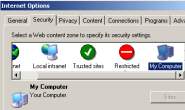
on local links did nothing. After much searching, it seems that the enhanced
security of SP2, a new security zone is added, and the machine defaults
to "Local Machine Lockdown".
To regain control, there appear to be three options: adding a bit of code
to each and every web page, disabling this new Lockdown mode, or the one
we went for – making the new security zone visible and adjusting settings
manually. For info on how to do this, we found some excellent instructions
at The Wacky World
of Windows Internet Security Settings
Problems uploading
a blogger log (550: Permission denied on file)
We were experiencing
problems uploading a blog from blogger.com to our webspace, and kept seeing
this message, referring to a filename made up of numbers. By trial and
error, we discovered that this was something to do with the settings in
"Settings | Formatting". If you get the same, try changing "Date
Header Format" and "Timestamp Format" to one of the text-options
(not a numeric option). Fixed the problem for us!
Need to control two computers with one keyboard?
You’ll be needing a KVM Switch (standing for Keyboard, Video & Mouse). See our page of information on one such device: ATEN CS-62U KVM Switch
Problem accessing blogger.com
Since updating
to Windows XP Service Pack 2, we found problems logging in to various
secure sites, such as blogger.com. To resolve this, we followed the advice
on MS
Support ID 813444 – re-registering the DLLs solved the problem for
us.
Receive faxes without a fax machine
If you
need to receive faxes, but don’t have access to a fax machine, take
a look at efax.com. They’ll give you a fax number, and forward faxes direct to your email account as an attachment. You can then use your email application to retrieve
your faxes on the move. You can also use this service to send faxes from an email.
Mysterious phone numbers
In July 2005, one of our team started receiving mysterious automated calls from the following two numbers:
- +1130811300
- +1130811500
We’ve been unable to identify the caller, but the area code relates to the Central African Republic. We’re keen to work out if these calls are some form of scam. If you have any information, please let us know.
Motorola TA200 walkie
talkie
Excellent walkie-talkies,
sadly they don’t seem to be available any more. If you’re looking for
a review, or a copy of the manual, go to our Motorola
TA200 page.